
What Is an M3U Playlist? IPTV Playlist Formats Explained
An M3U playlist is one of the most common ways to watch television over the internet today. If you have ever signed up for an internet television service or tried to set up a media player, you have likely been asked to load an “M3U URL” or an “M3U file.”
While the name sounds technical, the concept is simple. This guide explains exactly what an M3U playlist is, how it works in plain language, how to load it on your favorite devices, and how to fix the most common errors.
What Is an M3U Playlist? (Simple Explanation)
An M3U playlist is a plain-text file that contains a list of links pointing to media streams. It tells your IPTV player where each channel’s video is located, but it does not contain the video itself.
The #1 Beginner Misconception: An M3U playlist does not contain any video. It contains only references (URLs) to video streams hosted on a remote server. Think of an M3U playlist as a TV channel list, not the TV channels themselves — just like a restaurant menu lists the dishes but does not contain the actual food.
If you open an M3U file in a text editor like Notepad, you will not see video data. Instead, you will see a list of web addresses (URLs) along with the names of the channels and categories. When you load this file into a media player, the app reads the text list, creates a clean channel guide on your screen, and connects to the correct stream when you click play.
The Difference Between M3U and M3U8
You will often see two different file extensions: .m3u and .m3u8.
- M3U (Moving Picture Experts Group Audio Layer 3 Uniform Resource Locator) was originally created for audio playlists (like MP3 files) but was later adapted for video streaming.
- M3U8 is simply a modern version of M3U that uses UTF-8 character encoding.
UTF-8 encoding is a standard that allows text to display international characters, symbols, and accents correctly. For modern streaming, M3U8 is the standard. If your playlist includes international channels (such as French, Spanish, or Arabic names), using M3U8 ensures the channel names do not turn into garbled text symbols on your screen.
How Does an M3U Playlist Work?
IPTV apps use internet-based streaming links to deliver channels in real time. Instead of downloading a whole video file before watching, your device plays the video as it arrives over the internet.
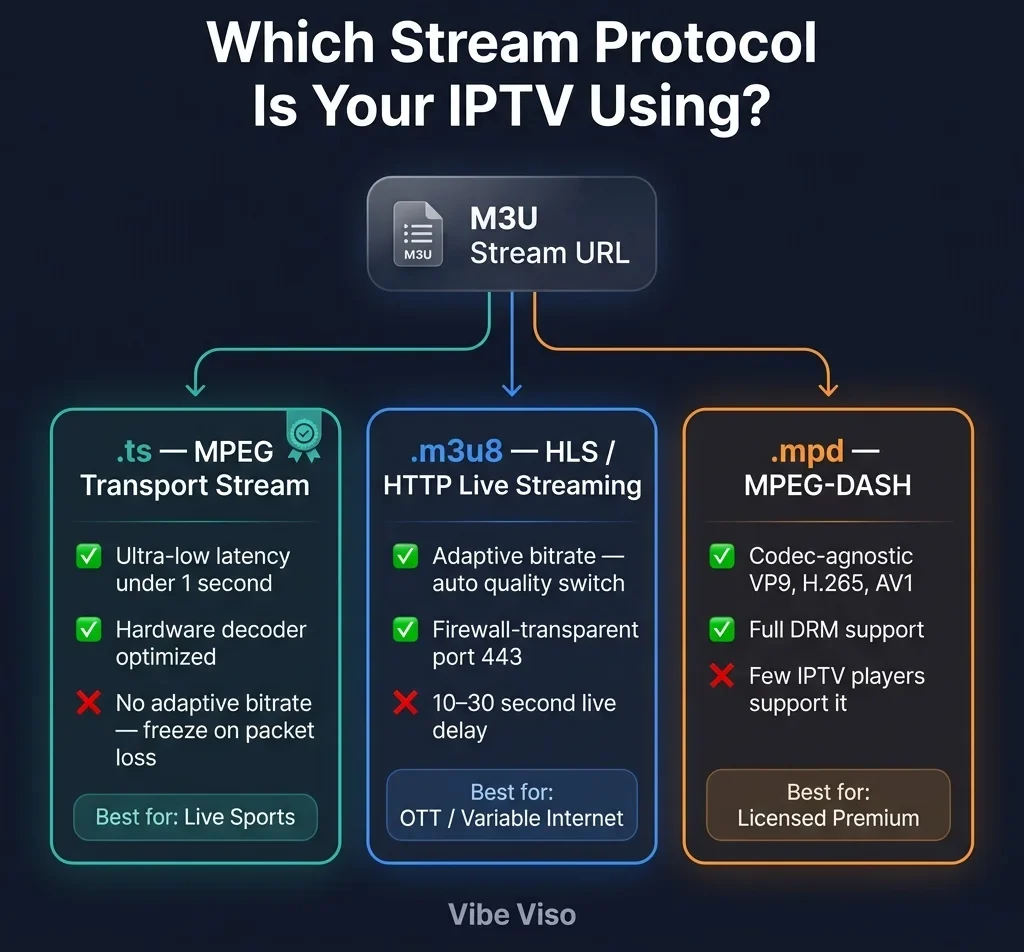
Streams may use HLS (M3U8) over HTTP for compatibility across different devices. HLS (HTTP Live Streaming) is a technology developed by Apple that splits the video stream into short, numbered segments. Your player downloads these segments one after the other.
Because it uses standard web traffic, it works on almost any device and bypasses standard home network restrictions. Additionally, the video quality adjusts automatically based on your internet speed. If your connection slows down, the stream will automatically load a slightly lower resolution to prevent the video from freezing.
The Playback Flow
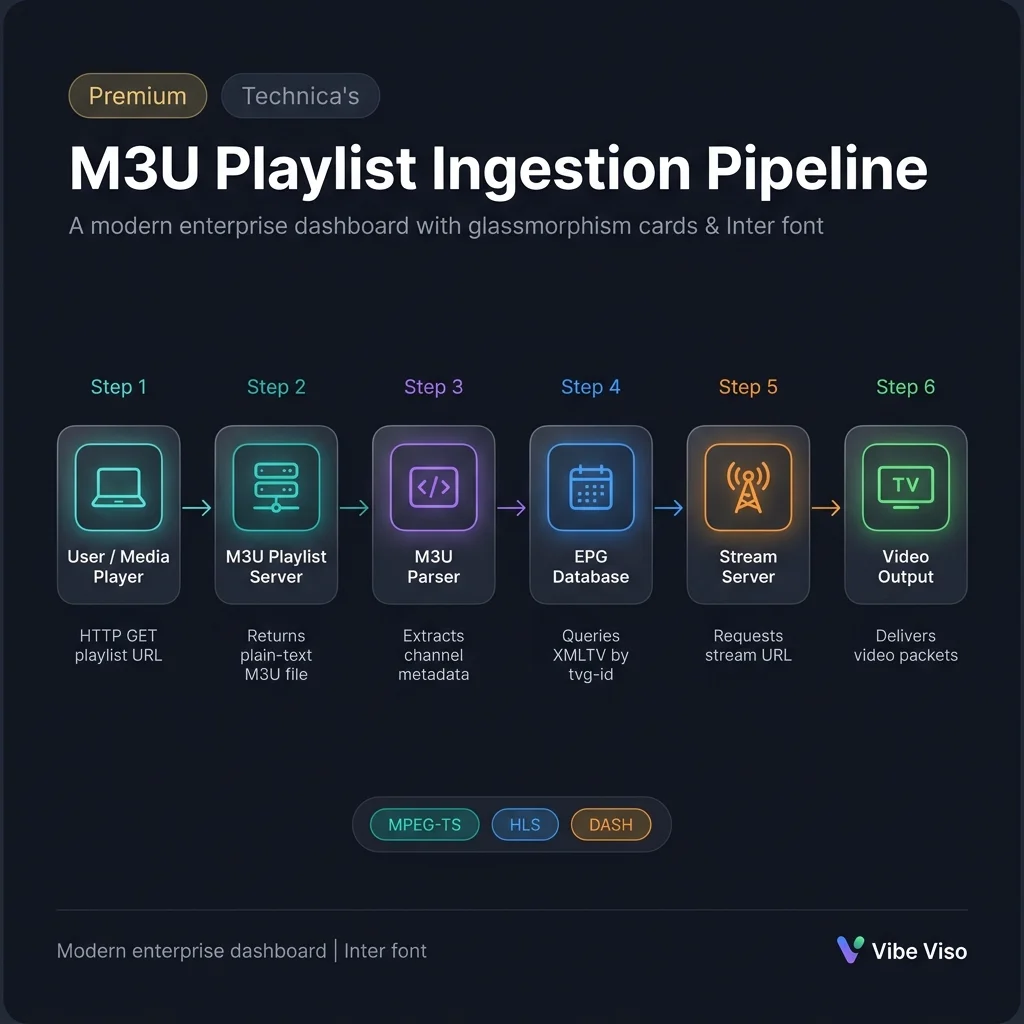
Here is the simple step-by-step process of how your player uses an M3U playlist to show video:
- User Enters URL: You paste the M3U playlist link into your chosen media player.
- App Downloads List: The app sends a request to the provider’s server and downloads the M3U text file.
- App Parses Text: The app reads the list of channel names, categories, and stream URLs.
- App Builds Guide: The app displays a clean, navigable channel guide on your screen.
- User Selects Channel: You click on a channel you want to watch.
- App Connects to Stream: The app reads the stream URL associated with that channel and sends a request to the streaming server.
- Server Delivers Video: The streaming server starts sending video packets to your device.
- Video Plays: Your player decodes the packets and displays the live video on your screen.
To learn more about the general infrastructure of internet-delivered television, you can read our guide on what is IPTV and its history in Canada.
A Real Example of an M3U Playlist File
To understand how your player reads a playlist, it helps to see what the raw text looks like. Below is a real, basic example of a standard M3U playlist file:
#EXTM3U
#EXTINF:-1, BBC News
http://example.com/live/bbc.m3u8
#EXTINF:-1, CNN Live
http://example.com/live/cnn.m3u8
Breaking Down the Code
Let’s dissect what each part of this text file means:
#EXTM3U: This must always be on the very first line of the file. It tells the media player: “This is an extended M3U file, so expect channel names and tags, not just a list of URLs.” If this line is missing or has a typo, your player will reject the file.#EXTINF: This tag stands for “Extended Info.” It introduces a channel and contains all the metadata for it.-1: The number immediately after the colon represents the video duration in seconds. In standard music playlists, this would show the track length (e.g., 240 seconds). For live streaming, it is set to-1to tell the player: “This is a live broadcast with no set duration, so do not try to seek or fast-forward.”tvg-id="BBC1": This is the unique identifier for the channel. Your player uses this ID to search your Electronic Program Guide (EPG) file and find the current TV schedule.tvg-name="BBC One": The official name of the channel.tvg-logo="...": A web link pointing to the channel’s icon or logo. The player downloads this image to display next to the channel name in your guide.group-title="Canada Sports": This defines the category folder. The player will group all channels with the same group title into a folder (e.g., “Sports,” “News,” or “Entertainment”) so you can find them easily.,BBC One: The text after the comma is the display name that will appear on your TV screen.http://example.com/...: The line directly below the#EXTINFtags is the actual web address of the video stream. This is where your player connects to pull the video packets.
To see how these files are handled by the server and player in detail, check out our guide on how IPTV works.
The Technical Anatomy of an M3U File
Every M3U playlist follows a predictable structure. Understanding each line and attribute is essential for troubleshooting EPG failures, logo loading issues, and channel sorting problems.
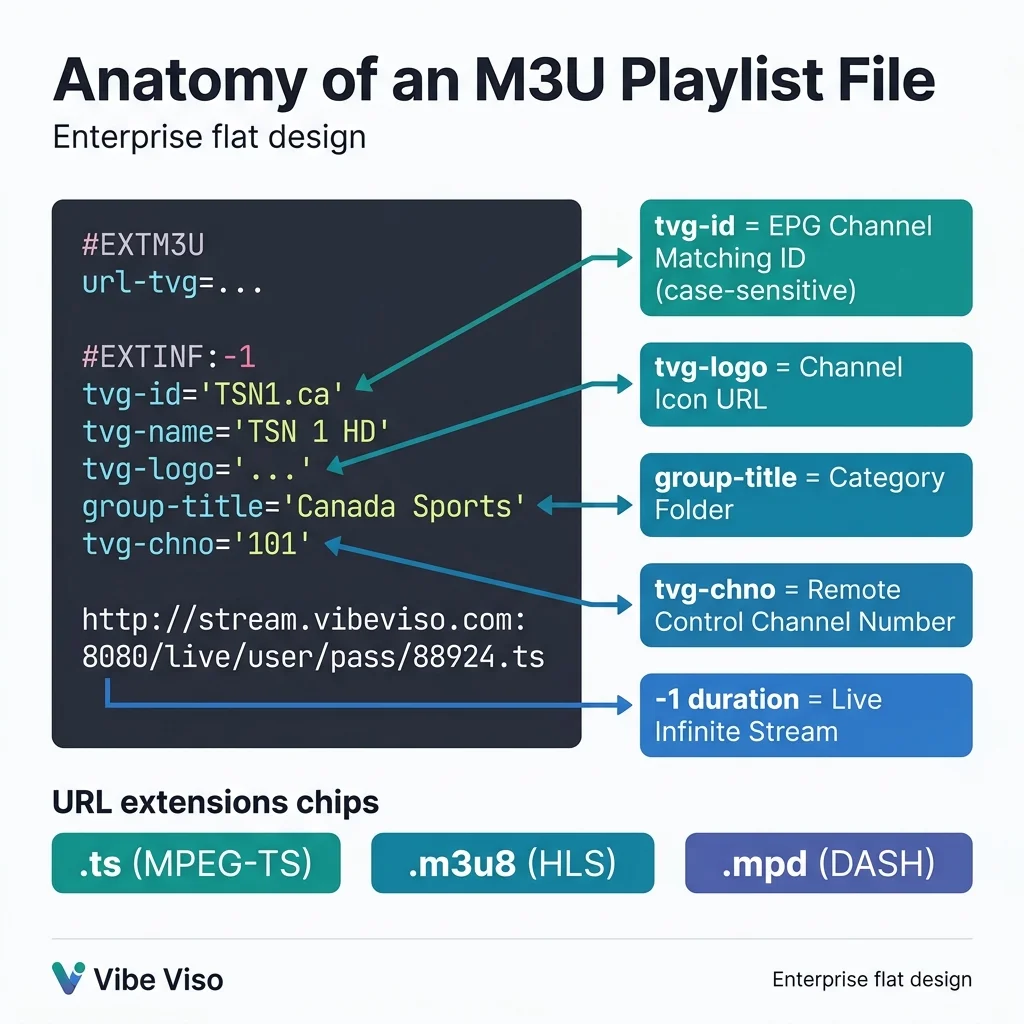
Diagram: The anatomy of an M3U playlist file showing how tags, attributes, and stream links are structured.
M3U Tag Attribute Reference Table
| Attribute | Technical Purpose | Failure Mode If Misconfigured |
|---|---|---|
#EXTM3U |
Required file header on line 1. Identifies the file as Extended M3U format. | If absent or on wrong line, players reject the entire file. |
url-tvg / x-tvg-url |
Global EPG XMLTV source URL applied to all channels in the playlist. | If left blank, ALL channels show “No Information” in the program guide. |
refresh |
Time in seconds after which the player reloads the playlist (e.g., 3600 = 1 hour). |
Without this, channel list never auto-updates; users miss new channels. |
#EXTINF |
Per-channel metadata line. Must immediately precede the stream URL. | If missing or on wrong line, the following URL is ignored entirely. |
-1 duration |
Signals a live, infinite broadcast. | Setting 0 may cause some players to skip entries thinking the segment is empty. |
tvg-id |
Case-sensitive identifier mapped to the <channel id="..."> value in the XMLTV EPG file. |
Even one character mismatch (e.g., tsn1.ca vs. TSN1.ca) breaks EPG matching. |
tvg-name |
Fallback identifier used when tvg-id is absent or unmatched. |
Raw messy names like TSN1 [RAW] [1080p] ruin fuzzy matching algorithms. |
tvg-logo |
URL pointing to channel’s icon/logo image. | Logo-hosting servers with high latency cause thread-blocking in players, causing visible lag during channel browsing. |
group-title |
Sets the category/folder in the player’s channel browser. | Commas or semicolons inside unescaped quotes crash older parser implementations. |
tvg-chno |
Logical channel number (mapped to remote control numpad). | Omitting this causes random channel ordering; users cannot navigate by number. |
tvg-country |
ISO 3166-1 alpha-2 country code (e.g., CA for Canada). |
Omitting prevents automatic language/region filtering in players. |
tvg-language |
ISO 639-1 language code (e.g., EN, FR). |
Omitting frustrates viewers of multi-audio international streams. |
M3U Playlists vs. Xtream Codes API
When you subscribe to an IPTV service, the provider will usually offer two ways to log in: an M3U playlist link or Xtream Codes API credentials.
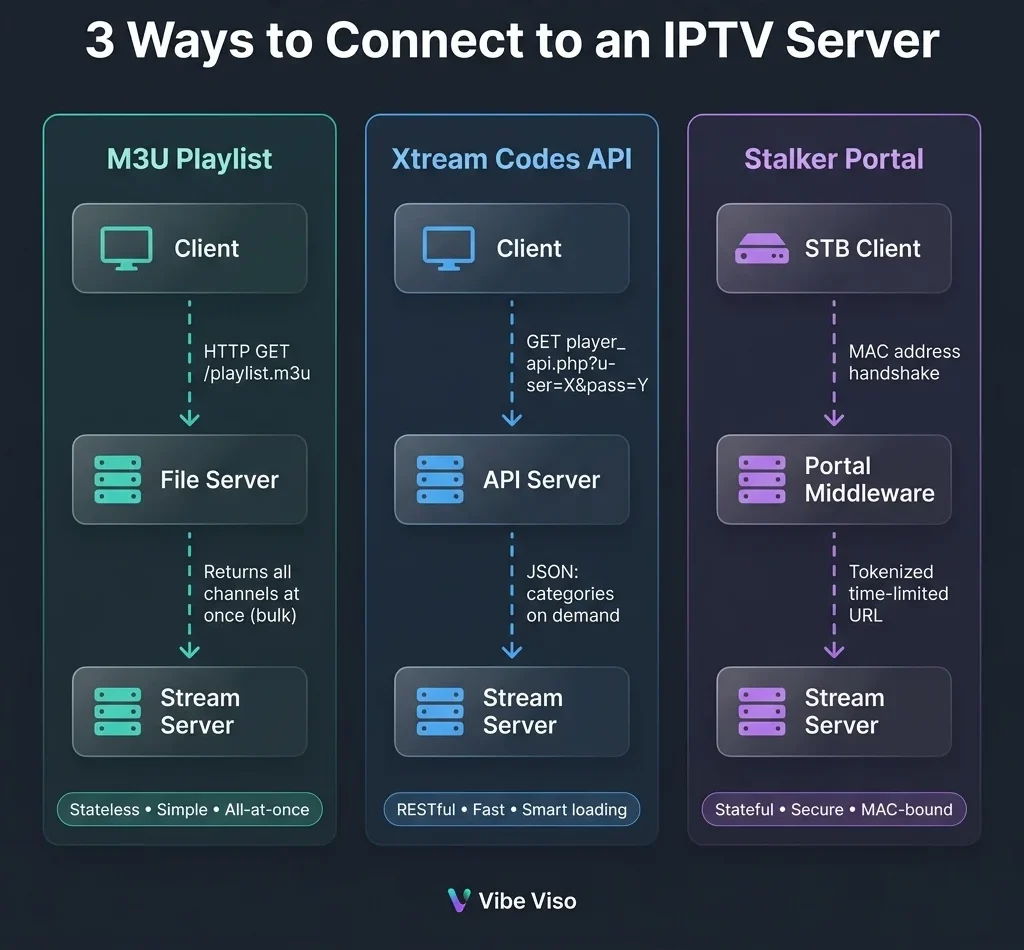
Some IPTV services also use the Xtream Codes login format because it is simpler for users to type and runs faster on low-power devices. While an M3U playlist is a single massive text file that you have to download entirely, Xtream Codes is a database system that loads categories only when you click on them.
At a Glance: M3U vs. Xtream Codes
| Feature | M3U Playlist | Xtream Codes API |
|---|---|---|
| Login Type | Long URL Link (must be copy-pasted) | Username, Password, and Server URL |
| Loading Speed | Slower (device must download the whole list) | Faster (loads channel lists on demand) |
| EPG Guide Setup | Manual (must paste a separate guide link) | Automatic (server configures guide automatically) |
| VOD & Catch-up | Harder to navigate | Organized clearly into movies, series, and archives |
| Memory Usage | High (can crash cheap streaming sticks) | Low (only uses memory for the active folder) |
Bottom line for beginners: If your IPTV app supports it, always use Xtream Codes. It is much easier to set up because you do not have to copy a 200-character M3U link. Instead, you enter your username, password, and the provider’s server address into a simple form.
How to Extract Xtream Codes Credentials from Your M3U URL
If your provider only gave you an M3U URL, you can actually pull your Xtream Codes credentials directly from it.
Look at this typical M3U URL: http://iptvprovider.com:8080/get.php?username=johndoe&password=12345&output=ts
You can break this link down into three simple pieces to log in via Xtream Codes:
- Server Address (Host URL): The main website address and port number:
http://iptvprovider.com:8080 - Username: The text after
username=:johndoe - Password: The text after
password=:12345
For a deeper look at different connection types and how they compare to modern streaming systems, read our analysis on IPTV vs OTT.
IPTV App Usage: How to Load an M3U Playlist
Different devices require different apps to play M3U playlists. Below are step-by-step setup guides for the most popular players.
1. VLC Media Player (PC, Mac, and Mobile)
VLC is a free, open-source media player that is excellent for testing your M3U link on a computer.
- Download and install VLC Media Player.
- Open VLC, click on Media in the top menu, and select Open Network Stream (or press
Ctrl + Non Windows,Cmd + Non Mac). - Paste your M3U playlist URL into the network URL box.
- Click Play.
- To see your channel list, click View in the top menu and select Playlist (or press
Ctrl + L).
2. IPTV Smarters Pro (iOS, Android, and Smart TVs)
IPTV Smarters is a highly popular, user-friendly app available on almost all screens.
- Download IPTV Smarters Pro from your device’s official app store.
- Open the app and select Load Your Playlist or File/URL.
- Choose Playlist or File/URL.
- Enter any name in the “Playlist Name” field (e.g., “My TV”).
- Paste your M3U link into the File/URL field.
- Click Add User and wait for the channels to download.
3. TiviMate (Firestick and Android TV — Recommended)
TiviMate is widely considered the best IPTV player for streaming devices because of its premium cable-like interface.
- Install TiviMate from the Google Play Store or sideload it onto your Amazon Firestick.
- Open TiviMate and click Add Playlist.
- Select M3U Playlist and paste your M3U URL.
- Once loaded, click Next.
- If your provider gave you an Electronic Program Guide (EPG) URL, select EPG and paste the guide link.
- Click Done to load your guide.
For detailed device instructions, see our comprehensive IPTV Firestick setup guide.
4. Kodi (PVR IPTV Simple Client)
Kodi is an advanced media center that can play M3U streams using a built-in add-on.
- Open Kodi and go to Settings (gear icon) → Add-ons.
- Select Install from Repository → PVR Clients → PVR IPTV Simple Client.
- Click Install.
- Once installed, select PVR IPTV Simple Client and click Configure.
- Under the General tab, set Location to Remote Path (Internet Address).
- Paste your M3U URL into the M3U Playlist URL field and click OK.
- Restart Kodi to load your channel list under the TV menu.
IPTV Player Comparison Table
| Feature | TiviMate | IPTV Smarters Pro | VLC Player | Kodi (PVR Client) |
|---|---|---|---|---|
| M3U Playlist Support | ✅ Yes | ✅ Yes | ✅ Yes | ✅ Yes |
| Xtream Codes Login | ✅ Yes | ✅ Yes | ❌ No | ❌ No |
| Program Guide (EPG) | ✅ Full Guide | ✅ Full Guide | ❌ List Only | ✅ Full Guide |
| Channel Catch-up | ✅ Yes | ✅ Yes | ❌ No | ✅ Yes (plugin) |
| Multiple Playlists | ✅ Yes | ✅ Yes | ❌ No | ❌ No |
| Recording Support | ✅ Yes | ❌ No | ❌ No | ✅ Yes (plugin) |
| Primary Platform | Firestick, Android TV | iOS, Android, Smart TVs | PC, Mac, Mobile | All Platforms |
Common M3U Playlist Mistakes & Troubleshooting
Setting up an M3U playlist does not always go smoothly. If you run into issues, check these common troubleshooting scenarios.
1. Playlist Will Not Load (Syntax and Formatting Errors)
If your app refuses to load the playlist URL, there are two common causes:
- Typo in the URL: IPTV playlist links are very long. Missing a single character or symbol will break the link. Double-check your spelling or use a copy-paste tool.
- Smart Quote Corruption: If you edited the M3U text file in a word processor like Microsoft Word before loading it, the software may have automatically converted straight quotes (
") into curly quotes (“and”). Media players cannot read curly quotes, which crashes the playlist parser. Always edit M3U files in raw text editors like Notepad or Notepad++.
2. Invalid or Dead Stream URLs
If your playlist loads, but every channel you click displays a black screen or a “Format Error” message, the stream links inside the file are broken. This means the host server is either offline, overloaded, or has changed its address. In this case, you must contact your IPTV provider to get an updated M3U URL.
3. Buffering and Freezing
If your channels load but buffer constantly, it is usually due to your internet connection speed. Remember that quality adjusts automatically based on internet speed, but if your overall bandwidth drops below the required threshold, the stream will freeze.
- HD 1080p streams require at least 5 Mbps of free internet speed.
- 4K Ultra HD streams require at least 25 Mbps of free speed.
If your internet is fast enough but you still experience buffering, your ISP might be throttling your connection. Using a VPN can encrypt your traffic and bypass this limitation. For more tips, check out our guide on how to fix IPTV buffering.
4. Expired IPTV Subscription
If your playlist worked perfectly yesterday but suddenly stopped loading today, check your subscription status. When a subscription expires, the provider’s server blocks your account. While the M3U link still exists, the server refuses to send the video data when your player requests it.
5. Missing EPG (“No Information” on All Channels)
If your channels play fine but your TV guide is completely blank, the issue is almost always a tvg-id mismatch.
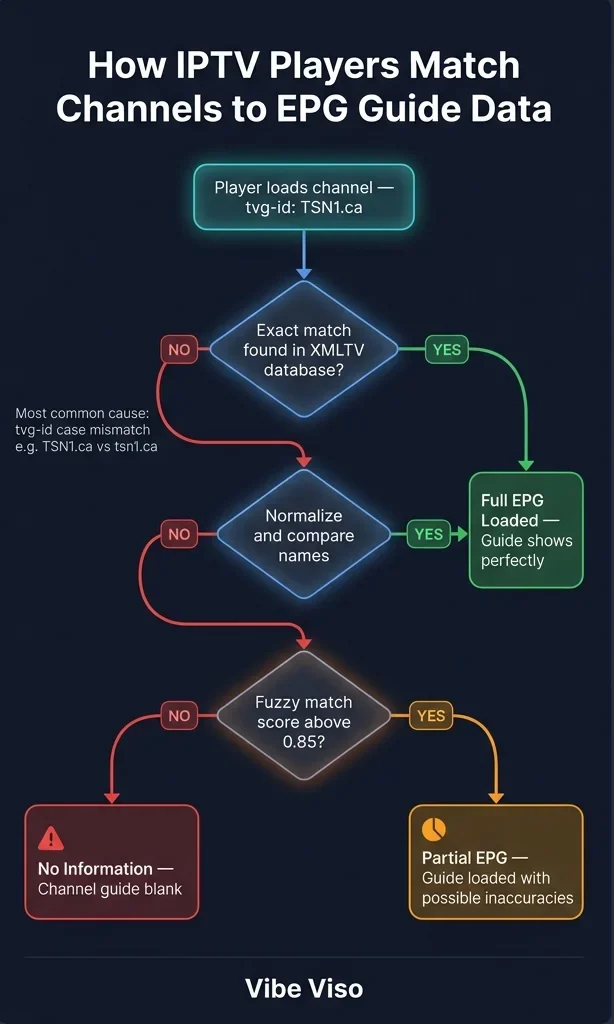
Diagram: How your IPTV player tries to match channels to EPG guide data. The most common failure point is a tvg-id case mismatch (e.g., TSN1.ca vs tsn1.ca).
Your player matches the channels in your M3U file to the TV guide using the tvg-id tag. This tag is case-sensitive. If your M3U file lists tvg-id="TSN1.ca" but your EPG file lists it as tsn1.ca in lowercase, the app will fail to match them, and the guide will display “No Information.”
Why M3U Playlists Sometimes Don’t Work
Even if your setup is correct, an M3U playlist may fail because:
- The stream link is offline or expired
- The IPTV provider changed server URLs
- Your internet blocks streaming domains
- The playlist format is corrupted
- The player does not support the codec
In most cases, the issue is not your device — it’s the stream source itself.
Legal FAST Channels: Test Your Setup
Before signing up for a paid service, you can test your IPTV player using 100% legal, free, and officially licensed FAST (Free Ad-Supported Streaming TV) channels. These services have public, legal HLS streaming links that you can load into any M3U player.
| Service | Operator | Channel Count | M3U Link Format | Content |
|---|---|---|---|---|
| Pluto TV | Paramount / CBS | 300+ | .m3u8 (HLS) |
Movies, TV Shows, Classic Series |
| Samsung TV Plus | Samsung Electronics | 200+ | .m3u8 (HLS) |
News, Sports, Entertainment |
| Plex Live TV | Plex Inc. | 300+ | .m3u8 (HLS) |
Movies, Documentaries, Comedy |
| Xumo Play | Comcast / Charter | 250+ | .m3u8 (HLS) |
Movies, Live News, Pop Culture |
To test your player, you can use the community-maintained legal channel directories on the open-source IPTV-org project on GitHub, which only filters and lists publicly available, authorized streams.
Security Guide: Protecting Your Credentials
Because M3U playlists are simple text files, they present unique security challenges that you must manage to protect your paid subscriptions.
The Credential Exposure Problem
A typical M3U URL contains your username and password in plain text: http://iptvprovider.com/get.php?username=myusername&password=mypassword&output=ts
If you share this link with anyone, or if you post it on a public forum to ask for help, your login credentials are exposed. Anyone who copies that link can use your subscription on their own device. Since most IPTV providers limit your account to 1 or 2 simultaneous connections, someone else using your link will lock you out of your own service.
WARNING
Never Use Public URL Shorteners: If you need to make your M3U link shorter to type it into a TV, never use public shorteners like TinyURL, Bitly, or Short.io. These websites keep public databases of shortened links. Hackers continuously scan these databases for IPTV links to steal active usernames and passwords.
Dynamic ISP Blocking in Canada
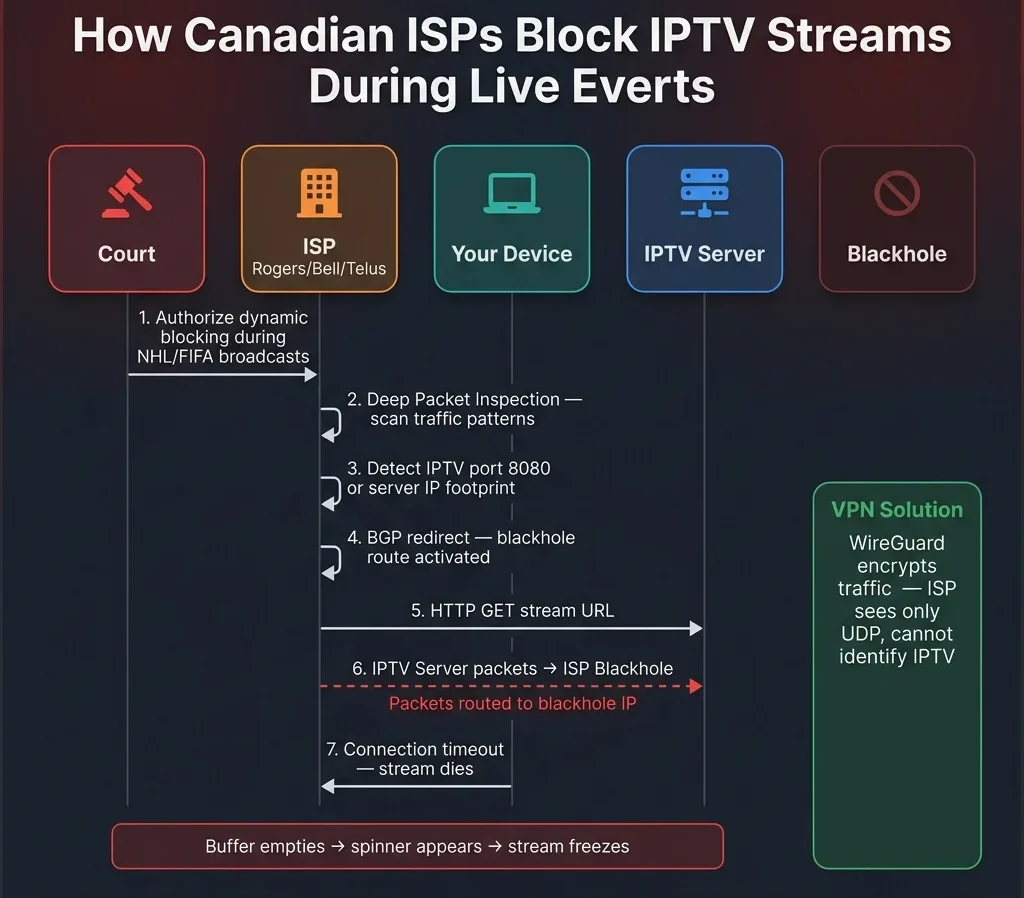
Under Canadian copyright laws, major internet service providers (such as Rogers, Bell, and Telus) hold federal court injunctions allowing them to dynamically block IPTV servers during live broadcasts, particularly NHL and FIFA sports events. If your IPTV player suddenly disconnects or buffers constantly during a major game, your ISP has likely blocked the stream server’s IP address.
To bypass this blocking, you can use a high-quality VPN (Virtual Private Network). A VPN encrypts all data leaving your device, preventing your ISP from seeing that you are streaming video and allowing your traffic to bypass their blocking filters. For a complete look at the legal framework, you can read our guide on is IPTV legal in Canada.
Frequently Asked Questions
Is using an M3U playlist legal in Canada?
Using the M3U playlist format is completely legal. Legitimate channels, streaming sites, and public broadcasters use M3U8 links to deliver content. However, downloading or loading an M3U playlist that indexes copyrighted, premium cable channels (such as paid sports networks or premium movie channels) from unlicensed providers is illegal under the Canadian Copyright Act.
What is the difference between M3U and M3U8?
The only difference is text encoding. M3U files use default system encodings (which can corrupt accented letters), while M3U8 files use UTF-8 Unicode encoding. UTF-8 ensures that international channel names and symbols display correctly across all devices.
Why is my EPG showing “No Information” on all channels?
This happens when the tvg-id tag in your M3U playlist does not match the channel ID in your EPG guide file. Since EPG matching is case-sensitive, even a minor difference (like CBC.ca vs cbc.ca) will break the guide link and leave the channel description blank.
Is Xtream Codes API better than an M3U URL?
Yes. Xtream Codes API is faster, uses less memory on streaming sticks, and sets up your TV guide automatically. It is the recommended login method for TiviMate and IPTV Smarters.
How many connections does my M3U playlist allow?
The connection limit is determined by your IPTV provider’s billing plan, not the file format. Most standard subscriptions allow 1 or 2 active devices to stream at the same time. If you exceed this limit, the server will block your connection or log you out.