
Internet speed for IPTV streaming in Canada requires a minimum of 10 Mbps for HD and 25 Mbps for 4K per device. Households with multiple connected devices should target 50 Mbps to 100 Mbps. Beyond raw bandwidth, a stable stream requires low latency (ping under 50ms), minimal jitter (under 20ms), and near-zero packet loss. Real-world internet speed for iptv is also affected by Wi-Fi interference, ISP traffic shaping, and upload channel saturation.
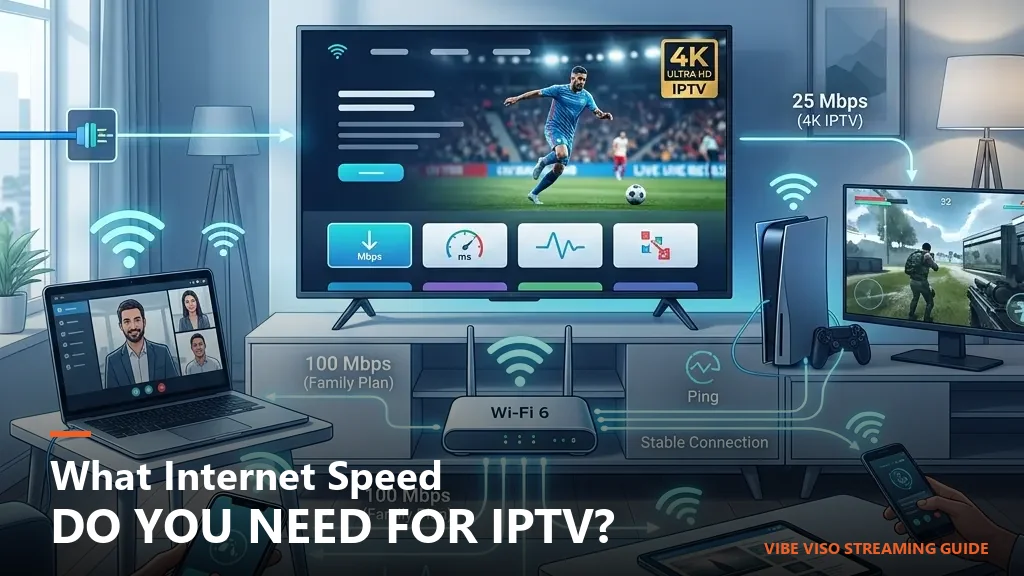
Internet Speed for IPTV: The Only Guide You Need in 2026
Cutting the cord and switching to internet-based television is the most popular way to stream content in 2026. However, the success of your setup rests entirely on one variable: your internet connection.
If you have ever settled in to watch a live NHL game or a premier movie release, only to face a constant loading circle, you know the frustration of poor stream optimization. Many Canadian households assume that buying a fast gigabit plan is all it takes to guarantee a buffer-free screen. In reality, determining the correct internet speed for iptv involves analyzing not just download Mbps, but video codecs, household sizing scaling, and specific ISP network management behaviors. Canadian ISPs like Rogers, Bell, and Telus each manage traffic differently, which means the same plan can produce dramatically different IPTV results depending on your provider.
Quick Answer: How Much Speed Do You Really Need?
- For a single HD stream (1080p): You need a minimum download speed of 15 Mbps.
- For a single 4K stream (UHD): You need a minimum download speed of 25 Mbps, though 40 to 50 Mbps is highly recommended to absorb packet spikes.
- For a multi-device family: A standard Canadian household with 3 to 4 active users (streaming, browsing, and gaming concurrently) should subscribe to a plan of at least 100 Mbps.
While the video stream itself may only consume 5 to 25 Mbps of active bandwidth, having a buffer of extra speed (network headroom) prevents other online activities from causing your television stream to drop resolution or freeze.
IPTV Speed Requirements: Internet Speed for IPTV at a Glance
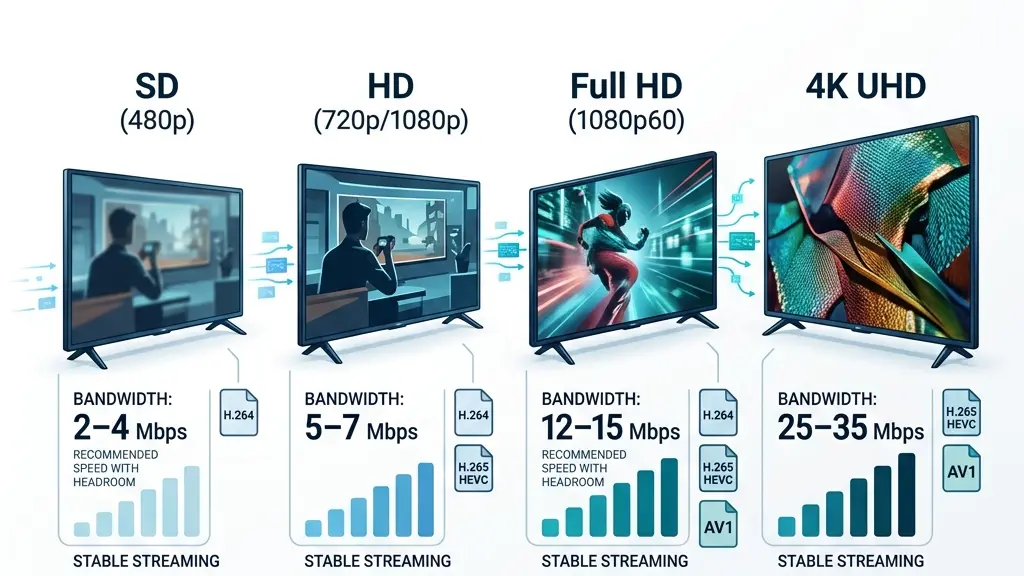
The amount of downstream bandwidth an IPTV channel consumes depends directly on the video resolution and the encoding standard (codec) used by the provider’s encoders:
| Video Resolution | Typical Codec | Minimum Bandwidth | Recommended Speed (with 30% Headroom) |
|---|---|---|---|
| SD (480p) | H.264 / AVC | 1.5−2.5 Mbps | 3−4 Mbps |
| HD (720p/1080i) | H.264 / AVC | 3.5−5.0 Mbps | 5−7 Mbps |
| Full HD (1080p @ 60fps) | H.264 / AVC | 8.0−12.0 Mbps | 12−15 Mbps |
| Full HD (1080p @ 60fps) | H.265 / HEVC | 4.5−6.0 Mbps | 7−8 Mbps |
| 4K Ultra HD | H.265 / HEVC | 15.0−25.0 Mbps | 25−35 Mbps |
| 4K Ultra HD | AV1 | 12.0−18.0 Mbps | 20−25 Mbps |
Most live IPTV streams use H.264 or the newer, more efficient H.265/HEVC standard. If your streaming provider uses H.265, you can get high-definition quality at nearly half the bandwidth of older streams, which is a major benefit for rural connections.
Internet Speed Requirements by Activity
To put these numbers in perspective, here is how standard IPTV bandwidth demands compare to other common online activities:
| Activity | Speed Needed |
|---|---|
| IPTV SD | 3 Mbps |
| IPTV HD | 10–15 Mbps |
| IPTV 4K | 25–40 Mbps |
| Netflix 4K | 25 Mbps |
| Zoom Video Calls | 5 Mbps |
| Online Gaming | Low bandwidth (typically 3–5 Mbps), but requires low latency |
Household Bandwidth Calculator: Internet Speed for IPTV Sizing
A common mistake is selecting a subscription plan that matches a single stream’s requirements. Finding the right internet speed for iptv is essential for smooth playback, ignoring the rest of the household. To determine the required internet speed for iptv for your home, use this simple calculation to account for concurrent online usage:
[TV Streams] + [Gamers] + [Work/Browsing] + [30% Safety Overhead] = Total Required Plan SpeedBandwidth Sizing Matrix:
- 1 Active User (Solo Household): A 30 Mbps to 50 Mbps plan. Allows for a single high-fidelity 4K stream with comfortable headroom for a phone or laptop browsing in the background.
- 2 to 3 Active Users (Small Family): A 100 Mbps plan. Supports two simultaneous HD/4K IPTV streams, online gaming, and home office use (Zoom, file transfers) without buffering.
- 4+ Active Users (Large/Connected Home): A 250 Mbps to 500+ Mbps plan. Recommended if you have multiple TVs running live streams, active smart home devices, and heavy downloading (e.g. game consoles downloading large patches).
Why Raw Speed Is Useless Without Connection Quality
You can subscribe to a premium gigabit fiber plan, but if your connection quality is poor, your IPTV stream will still buffer. High-fidelity video streaming requires a continuous, stable flow of packets. Three key metrics dictate this stability:
1. Latency (Ping)
Latency is the time it takes for a data packet to travel from your streaming device to the IPTV host server and back.
- Target: Under 50 ms is ideal.
- Impact: While high latency (over 100 ms) won’t cause buffering on pre-buffered on-demand video, it directly slows down “zapping time” (the delay when you change channels) because the device must wait longer to receive the new stream manifest.
2. Jitter (Packet Delay Variation)
Jitter is the variance in packet arrival times. If packets are sent at 10 ms intervals but arrive in clumps (e.g. 5 ms, then 40 ms), the decoder buffer is temporarily starved of data.
- Target: Under 20 ms.
- Impact: High jitter causes sudden, erratic freezing. To absorb this, the player must increase its buffer size, which makes zapping feel sluggish.
3. Packet Loss
Packet loss occurs when data packets fail to arrive. Because IPTV video streams are highly compressed, losing even a fraction of a percent of packets degrades quality.
- Target: 0.0% (Strictly under 0.1%).
- Impact: Codecs like H.264 and H.265 use Intraframes (I-frames), which are complete baseline pictures, followed by delta-frames (P-frames and B-frames), which only transmit the changes between frames. If you lose a packet containing an I-frame, the decoder cannot render the delta changes. This results in severe green pixelation (macroblocking), screen freezes, and audio pop sounds.
Does Wi-Fi Affect IPTV Speed?
Many users searching for solutions to stream buffering assume their internet package is too slow, when in reality, their home Wi-Fi network is the bottleneck. The frequency band and type of wireless connection you use have a massive impact on your effective streaming performance:
- 2.4 GHz vs. 5 GHz Bands: The 2.4 GHz frequency has long range but limited bandwidth and is highly congested by household devices (microwaves, baby monitors, Bluetooth appliances). The 5 GHz band has shorter range but offers massive bandwidth and is virtually free from interference. Always connect your streaming device to 5 GHz.
- Wi-Fi 6 (802.11ax): If you have multiple devices in a crowded home, Wi-Fi 6 uses advanced multi-user technologies (OFDMA) to allocate dedicated sub-channels to your streaming players, preventing wireless queue delays.
- Mesh Wi-Fi Networks: Mesh routers expand Wi-Fi coverage across larger homes. However, you should try to hardwire mesh nodes to each other (wired backhaul) because relying on wireless hops can introduce packet delay variation (jitter) to real-time streams.
- Wired Ethernet (The Gold Standard): Whenever possible, bypass Wi-Fi entirely. A physical Ethernet cable provides a direct path that completely eliminates packet collisions and signal dropouts.
Best Network Setup for IPTV
For a flawless, buffer-free configuration, follow this recommended signal pathway:
Canadian ISP Profiles: How They Affect Your IPTV Stream
Different internet service providers (ISPs) in Canada use different physical delivery paths. This directly determines your stream’s stability and how you should configure your player.
Rogers & Shaw (DOCSIS Cable Nodes)
- The Technology: Uses Hybrid Fiber-Coaxial (HFC) cabling under the DOCSIS 3.1/4.0 standards.
- Buffering Profile: Because cable lines are shared at the neighborhood level (a local “node”), your bandwidth and jitter can fluctuate during peak hours (7:00 PM to 10:00 PM) when neighbors clog the network. Rogers also enforces dynamic IP blocks during live sports broadcasts, which can artificially restrict your effective internet speed for iptv.
Bell & Telus (Pure Fiber FTTH)
- The Technology: Symmetrical Fiber-to-the-Home (FTTH) networks.
- Buffering Profile: Symmetrical fiber delivers identical download and upload speeds with incredibly low latency (<10 ms). This guarantees a stable internet speed for iptv without dropouts. However, Bell utilizes Deep Packet Inspection (DPI) to identify unrecognized UDP streams and filters default DNS servers to block unauthorized IPTV domain lookups.
Starlink (LEO Satellite)
- The Technology: Low Earth Orbit satellite arrays communicating via high-frequency Ku/Ka radio bands.
- Buffering Profile: Starlink is a game changer for rural Canada, delivering 100+ Mbps speeds. However, atmospheric attenuation (heavy rain or wet snow) can cause temporary packet loss. Furthermore, as your satellite dish hands off tracking to a new satellite (every 4 to 15 minutes), micro-latency spikes can trigger momentary stream freezes.
Xplore (Fixed Wireless & Satellite)
- The Technology: Access tower LTE/5G or geostationary satellite dishes.
- Buffering Profile: Fixed wireless towers are prone to heavy congestion during peak evening hours, causing speeds to drop and jitter to spike. Geostationary satellite connections have high latency (600−800 ms), making real-time channel zapping sluggish.
Buffering Troubleshooting: Internet Speed for IPTV Diagnostics
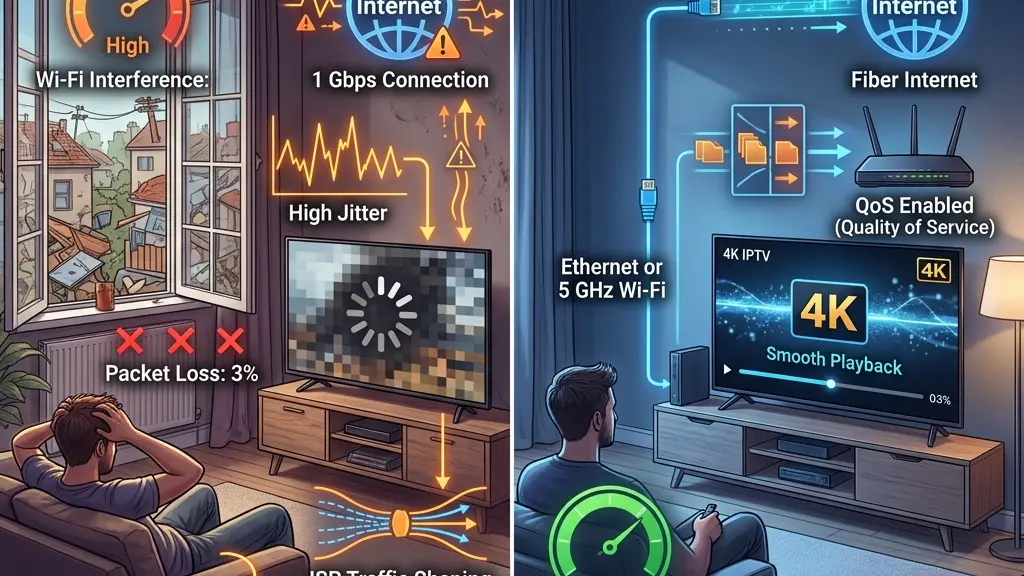
If a speed test shows your connection is running at 150 Mbps, but your TV screen is still freezing, your raw internet speed for iptv is not the issue. Buffering is typically caused by local network stability dropouts, upload channel saturation, or DNS configuration conflicts rather than insufficient download speed. Here are four common reasons your stream is buffering, and how to fix them:
1. The Upstream Upload Saturation Trap
Most home internet plans are asymmetrical, meaning your upload speed is much slower than your download speed (e.g. 100 Mbps download but only 10 Mbps upload). If someone in your home is uploading files, cloud syncing, or participating in a high-definition video call, your upload channel can become fully saturated. When your upload is maxed out, your streaming device cannot send the necessary outgoing confirmation signals back to the streaming server. The server assumes your connection is lagging and halts the stream.
- The Fix: Enable Quality of Service (QoS) in your home router’s settings. Add your streaming stick’s IP or MAC address to the “High Priority” list to ensure its signals are processed first.
Technical Explanation (TCP ACK & Bufferbloat)
IPTV players use the TCP protocol to download stream segments. For the server to continue sending video packets, your streaming device must transmit upstream acknowledgement (ACK) packets. When the upstream channel is saturated with large data uploads, outgoing TCP ACKs from your streaming device are delayed or dropped in the router’s queue. The server interprets this delay as network congestion, shrinks its congestion window, and collapses your download throughput, leading to buffer stalls.
2. The Amazon Fire Stick Ethernet Adapter Limitation
Many cord-cutters purchase an official micro-USB Ethernet adapter for their Amazon Fire Stick to avoid wireless interference. However, the Fire Stick’s micro-USB port is wired internally to a USB 2.0 bus.
Because of this architectural constraint, standard adapters are capped at 100 Mbps (yielding ~94 Mbps net after protocol overhead). While 100 Mbps is stable, high-motion 4K streams can spike past 95 Mbps in high-action scenes, overflowing the adapter’s buffer and causing macroblocking.
- The Fix: A wired 100 Mbps adapter is still highly reliable for HD streams. However, if you stream high-bitrate 4K content, connect via 5 GHz Wi-Fi close to your router, or upgrade to a device with a native Gigabit port (like the Nvidia Shield Pro).
3. DNS Resolution Interference
Some ISPs or network configurations may interfere with DNS resolution for certain streaming services, and switching to a public DNS resolver can sometimes improve reliability. If your player cannot translate the IPTV domain name into an IP address, it will fail to connect.
- The Fix: Manually change the DNS settings on your router or streaming stick to use public, high-speed resolvers:
- Cloudflare DNS: Primary
1.1.1.1| Secondary1.0.0.1 - Google DNS: Primary
8.8.8.8| Secondary8.8.4.4
- Cloudflare DNS: Primary
4. Player Buffer Settings
Populating your player’s buffer queue helps prevent stream drops, but requires customization depending on your connection type.
- In TiviMate (
Settings > Playback > Buffer Size):- If you are on Fiber (Bell/Telus): Set buffer size to None or Small for instant, zapping times.
- If you are on Starlink, Wi-Fi, or Fixed Wireless: Set buffer size to Large or Very Large. This pre-buffers 3 to 5 seconds of video to absorb latency spikes and packet dropouts, keeping your video smooth.
How to Check Your Actual IPTV Speed
Measuring the speed of your home computer or phone does not tell you the actual internet speed for iptv your streaming device is receiving. Follow this quick diagnostic sequence:
- Run a Local Speed Test: Install an internet speed test app (like Analiti or the default Speedtest app) directly on your Fire Stick or Smart TV. Ensure you test during peak hours (7:00 PM to 10:00 PM).
- Use a VPN Test: If your raw speed is high (e.g. 80 Mbps) but your stream is still buffering, turn on a secure VPN using the WireGuard protocol. Test the speed again. If the stream stabilizes, your ISP was actively throttling your video connection. Using a VPN encrypts your traffic, preventing the ISP from identifying and deprioritizing your stream.
- Check Your Latency (Ping): Look for the ping result on your speed test. If it is over 100 ms, check your router distance or switch from Wi-Fi to a wired connection to lower zapping delays.
To help configure your player after optimizing your network speeds, read our detailed IPTV Setup Guide for Canada and our guide to configuring M3U playlists. You can also learn how to sync your guides in our IPTV EPG setup guide and review our technical overview of IPTV vs OTT systems. To test your configuration with no upfront payment, review our available IPTV free trials.
Canadian ISP traffic management policies are regulated by the CRTC (Canadian Radio-television and Telecommunications Commission), which publishes annual reports on ISP traffic shaping and broadband performance standards. For the fastest and most private DNS resolution, Cloudflare’s 1.1.1.1 DNS service is a publicly verified, zero-logging resolver recommended by network engineers for IPTV setups.
Common IPTV Speed Myths
Understanding how stream bandwidth works can save you from paying for overpriced internet tiers. Here are three common speed myths debunked:
- Myth 1: “I need 1 Gbps (Gigabit) internet to stream IPTV.”
- Reality: Most homes do not need gigabit speeds. A single 4K IPTV stream maxes out around 25–40 Mbps. A standard 100 Mbps or 150 Mbps plan is more than enough for a typical family to stream on multiple TVs, browse the web, and game at the same time.
- Myth 2: “Download speed is the only metric that matters.”
- Reality: Latency and jitter are far more important for live television. A connection with high download speeds (e.g. 500 Mbps) but high packet delay variation (jitter) will buffer constantly, while a stable 25 Mbps DSL line with zero jitter will play smoothly.
- Myth 3: “Faster internet always fixes buffering.”
- Reality: Buffering is often caused by local Wi-Fi channel congestion, router QoS bottlenecks, DNS resolution blocks, or overloaded servers on your IPTV provider’s end. Upgrading your internet plan from 100 Mbps to 1 Gbps will not fix buffering if the underlying issue is on your local network or the provider’s server.
Frequently Asked Questions (FAQ)
Is 50 Mbps fast enough for IPTV?
Yes, 50 Mbps is plenty of speed for a single household. It easily supports two simultaneous Full HD streams or one 4K stream with comfortable headroom for browsing. However, if multiple family members are gaming, video conferencing, or downloading large files at the same time, you should upgrade to a 100 Mbps or 250 Mbps plan.
Does IPTV slow down your internet speed?
Yes, IPTV streams consume active downstream bandwidth. A Full HD stream uses approximately 8 to 12 Mbps, and a 4K stream uses 15 to 25 Mbps. While a stream is running, this bandwidth is subtracted from your total available household speed, which can slow down large file downloads on other devices if your base plan is under 50 Mbps.
Why does my IPTV buffer when I have fast internet?
Buffering on fast connections is usually caused by network stability issues rather than speed. The main culprits are packet loss (often due to crowded 2.4 GHz Wi-Fi bands), high jitter, upload channel saturation that blocks TCP ACKs, DNS filtering by your Canadian ISP, or server-side limitations from your IPTV provider.
How many Mbps do I need for 4K IPTV?
You need a minimum download speed of 25 Mbps for a single 4K stream. However, because video bitrates spike during high-motion scenes (such as live sports), we recommend having at least 40 Mbps of dedicated bandwidth per 4K device to absorb these spikes and prevent buffering.