
What Is an IPTV EPG (Electronic Program Guide)? Complete Setup & Fix Guide
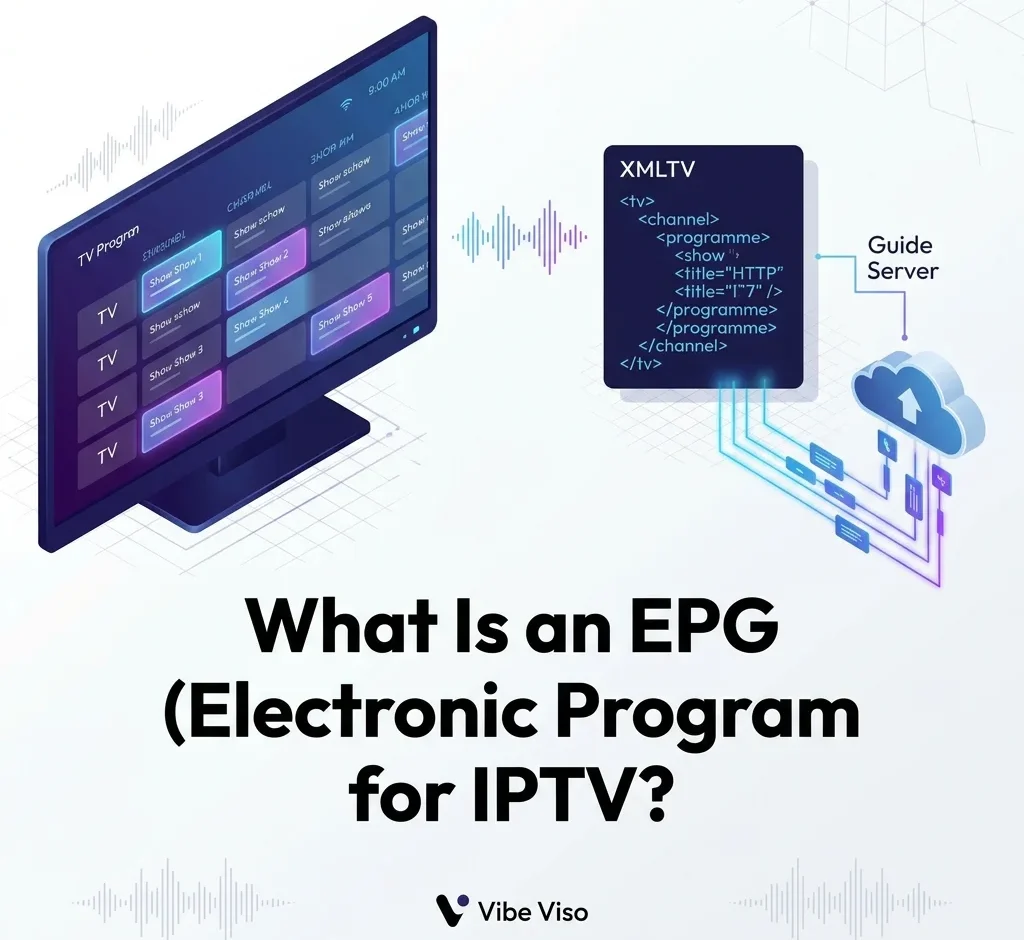
An IPTV EPG (Electronic Program Guide) is the interactive TV schedule inside your streaming app. It connects your playlist to program data — channel names, show timings, and descriptions — so your IPTV interface looks and behaves like a modern TV guide. To activate an IPTV EPG, you input a valid XMLTV URL or Xtream Codes credentials into your media player.
- EPG = interactive TV guide inside IPTV apps
- Powered by XMLTV files (
.xml/.xml.gz) or Xtream Codes API - How it links: matches M3U channels using
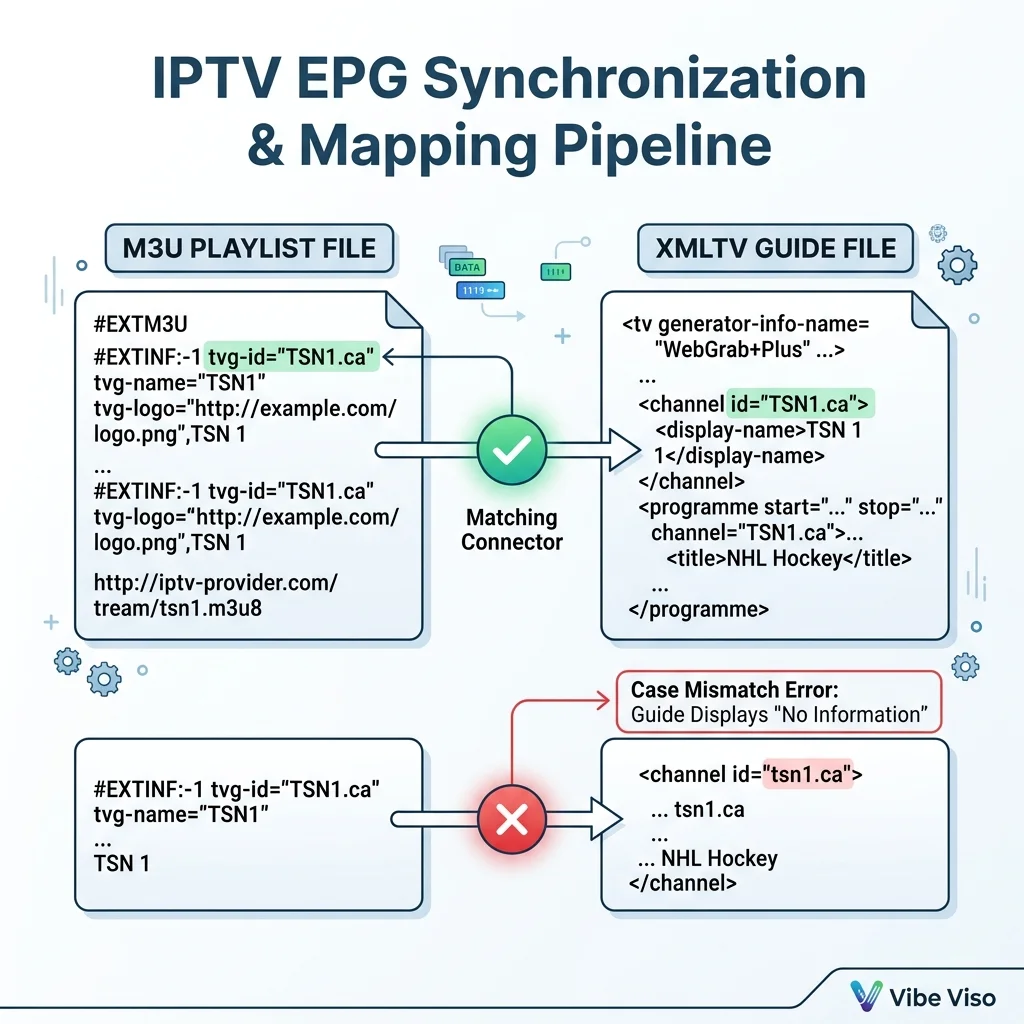
tvg-id↔<channel id> - Most common issue:
tvg-idmismatch or case sensitivity errors - Fix time issues: use the “Time Shift” setting in your player
- Best supported apps: TiviMate, IPTV Smarters, Kodi
Simple Explanation: What Is an IPTV EPG?
An IPTV EPG (Electronic Program Guide) is the TV guide inside your streaming app that shows channel names, program schedules, and what is currently playing or coming next. Without an IPTV EPG, your playlist only shows raw stream links with no information about what is on.
EPG vs No EPG Experience
The table below outlines the direct usability differences between configuring an IPTV player with and without EPG data:
| Feature / Experience | With EPG | Without EPG |
|---|---|---|
| Channel Presentation | Channel names, descriptions, and high-res logos | Raw stream URLs and unformatted channel indexes |
| Scheduling Visibility | Complete program schedules showing current and future shows | No scheduling information available |
| User Navigation | Easy, grid-based search, categories, and scrolling | Confusing list of streams requiring blind clicking |
| Interactive Options | Supports catch-up TV links, program descriptions, and favorites | Simple stream playback controls only |
EPG vs M3U Playlist
While both are essential files for setting up an IPTV player, they serve entirely different purposes.
| Feature / Difference | M3U Playlist | EPG (Electronic Program Guide) |
|---|---|---|
| Primary Function | Contains the stream links and URLs for channels | Contains the TV guide schedules and metadata |
| Necessity | Required to play any video streams | Optional, but improves user experience |
| Content | Stream links, group titles, channel names | Show descriptions, start/stop times, logos |
| Format | Text file starting with #EXTM3U |
XML document starting with <tv> |
Do You Need an EPG for IPTV?
No, an IPTV EPG is not required to stream channels — but it significantly improves usability. Without an EPG, you can still watch live TV using your M3U playlist, but you won’t see program names, schedules, or descriptions.
Most users only realize the importance of an IPTV EPG after using IPTV without one, where every channel appears as a plain stream link with no context.
If you are using IPTV regularly, an EPG is considered essential for a proper TV-like experience.
How Does an IPTV EPG Work?
An IPTV EPG works by downloading program schedule data, storing it locally on your device, and displaying it as a grid-based TV guide inside your streaming app. Your IPTV app combines two data sources: the stream (video) from your M3U playlist and the schedule data from your EPG file.

EPG File Example (Simple View)
An EPG file is simply a structured XML file that contains channel names and program schedules mapped to timestamps.
DTD-Compliant XMLTV Code Example
The three core XMLTV tags:
| Tag | Purpose |
|---|---|
<tv> |
Root element — wraps the entire EPG file |
<channel> |
Defines a channel with a unique id that links to your M3U tvg-id |
<programme> |
A single show with start, stop timestamps and channel reference |
Timezone Offsets & Time Shift Syncing
One of the most common issues cord-cutters face is a guide that shows correct program details but shifts them by several hours (e.g., showing a 6:00 PM news broadcast as airing at 11:00 PM). This occurs due to failures in timezone offset parsing.
In the XMLTV standard, timestamps are formatted using an ISO-like structure: YYYYMMDDHHMMSS +/-ZZZZ
Let’s break down the timestamp 20260702180000 +0000:
2026= Year07= Month (July)02= Day18= Hour (6:00 PM)00= Minute00= Second+0000= Timezone Offset (UTC/GMT)
If your IPTV provider outputs EPG timestamps in UTC (+0000), your IPTV player must calculate the offset difference between the EPG server time and your device’s local system time. If you live in Toronto, Canada (Eastern Standard Time, UTC-5), your player should automatically subtract 5 hours from the timestamp, displaying the broadcast as airing at 13:00:00 (1:00 PM local time).
Why Time Synchronization Fails
- Missing Timezone Offsets: Some custom EPG grabbers omit the offset string entirely (e.g.,
start="20260702180000"). Without the offset, the IPTV player defaults to UTC or the device’s local time, shifting the program grid by hours. - Hardcoded Parsing Bugs: Lower-tier IPTV players use basic string-splitting algorithms that discard the timezone offset component, parsing only the initial timestamp block as local time.
- Incorrect Local System Time: If your Amazon Firestick or Android TV box has “Automatic Date & Time” disabled, or is set to an incorrect home timezone, the offset calculation will be off, shifting the guide grid.
How to Fix Timezone Offsets
If your guide shows correct program data but incorrect times, navigate to your player’s settings (e.g., TiviMate > Settings > Playlists > [Your Playlist] > EPG Sources > Time Shift). Adjust the time shift offset parameter (+1, -5, etc.) until the guide grid aligns with your local clock.
Why IPTV Guides Display “No Information” (Case-Sensitive Mapping)
A common frustration is importing a working M3U streaming playlist and a verified EPG source, only to find the guide grid displays “No Information Available” across all channels. This is usually caused by case-sensitivity matching errors. Your IPTV player matches the tvg-id in your M3U file against the id attribute in your EPG XML. This match is case-sensitive — a one-character difference causes the guide to display “No Information” even when both files are correct.
If your M3U says tvg-id="HBO.us" but your EPG says <channel id="hbo.us">, the match fails and the guide goes blank.
Resolving Matching Failures
- Manual Player Mapping: Advanced IPTV players like TiviMate allow you to hover over a blank channel, select “Assign EPG,” and manually search the EPG database to force-link the stream to the correct listing.
- Use Playlist Editors: You can use free web utilities like m3u4u.com to sanitize your EPG and M3U playlist files. These tools force all channel IDs to lowercase, ensuring seamless matching.
- Provider Correction: Ensure you are using the specific EPG link provided by your IPTV supplier, as they are pre-configured to align with the channel IDs in their M3U streams.
Hardware Resource Constraints & Caching
Low-RAM streaming devices, such as the Amazon Fire TV Stick Lite, Xiaomi Mi Box, and Chromecast with Google TV HD, often have only 1GB to 1.5GB of total RAM. These hardware limits can cause IPTV players to freeze or crash during EPG updates. This is especially relevant because the IPTV delivery pipeline already claims a significant share of device RAM just to decode and buffer the video stream.
- Lightweight parsing prevents app crashes: Loading massive, unfiltered EPG files can occasionally crash low-RAM streaming sticks, so it is best to filter out unused channels.
- EPG data is cached locally: EPG data is cached locally inside the app’s flash storage rather than active RAM to ensure fast grid loading and smooth navigation.
XMLTV URLs vs. Xtream Codes EPG API
When configuring an IPTV setup, you will typically choose between a flat XMLTV URL or the Xtream Codes API.
Rather than downloading a massive manifest file, the Xtream Codes client-pull model allows players to fetch only the guide data needed for the channels currently on screen. Xtream Codes APIs can automatically generate EPG data without requiring a separate XMLTV URL.
The table below compares the two primary guide delivery architectures:
| Evaluation Metric | XMLTV URL Setup (Bulk Ingest) | Xtream Codes API (On-Demand JSON) |
|---|---|---|
| Data Format | Compressed XML (.xml.gz) |
Structured JSON |
| Parsing Location | Client-side (Device CPU & RAM) | Server-side (Lightweight JSON client parse) |
| Bandwidth Consumption | High (downloads full 10MB–150MB files) | Extremely low (queries only visible channels) |
| Initial Update Delay | High (takes minutes to index on boot) | Instant (ready immediately upon app load) |
| Offline Capability | Yes (schedules are cached in local database) | No (queries require active API queries) |
| Update Recency | Static (requires daily cron refresh jobs) | Real-time (fetches live updates from server) |
Why EPG is Important in IPTV Apps
Most users notice EPG only when it is missing. Common symptoms include:
- “No information” on all channels
- Empty TV guide grid
- Wrong program times
- Missing channel logos
Common Reasons EPG Stops Working
If your TV guide stops loading, the issue is typically caused by one of the following:
- Expired XMLTV URL: EPG feeds require regular maintenance and hosting; links can expire or get taken down by the host.
- Incorrect timezone settings: Mismatches between your device’s timezone and the EPG server cause guide times to display shifted or completely blank.
- M3U and EPG channel mismatch: Stream playlists and TV guides must use the exact same channel identifiers (
tvg-id) to link correctly. - App cache corruption: Stale databases inside player apps can corrupt, blocking guide updates until cleared.
- Provider server downtime: If your IPTV supplier’s main portal is offline, their EPG generation servers will also fail.
Best IPTV Apps That Support EPG
Choosing an EPG-compatible player is essential for a clean guide grid. If you are still choosing a provider, see our full breakdown of IPTV services across Canada to find one that bundles EPG data automatically.
- TiviMate: Widely considered the best player for EPG mapping, allowing multiple EPG sources, timezone adjustments, and manual channel mapping.
- IPTV Smarters Pro: The most popular multi-platform app. It automatically handles EPG data for Xtream Codes and offers simple URL imports for M3U playlists.
- Kodi (PVR IPTV Simple Client): An open-source media center solution that supports compressed XMLTV URLs and offers customizable guide skins.
- XCIPTV: A user-friendly media player that features a clean grid display and automatic EPG synchronization.
How to Configure EPG in IPTV Apps
Once you have your XMLTV EPG URL or Xtream Codes login credentials, you can configure the guide in your preferred media player. If you do not have an active subscription yet, you can start a free IPTV trial to test EPG compatibility before committing.
How to Configure EPG in TiviMate
- Launch TiviMate and open the Settings menu.
- Navigate to Playlists and select your active playlist.
- Scroll down to EPG Sources and select Add source.
- Choose Enter URL and enter your EPG URL (usually ending in
.xmlor.xml.gz). - Click Done. TiviMate will run a background update, showing a progress bar as it parses the channels.
- Optional: If some channels remain blank, long-press the channel, select Assign EPG, and search for the correct channel name.
How to Configure EPG in IPTV Smarters Pro
- Open IPTV Smarters Pro and log in using your playlist file or Xtream Codes API details.
- On the home dashboard, click the Install EPG button in the top right corner.
- If using an M3U playlist, paste your XMLTV URL into the EPG link field and click Save.
- If logged in via Xtream Codes, the player will automatically map EPG feeds in the background.
- Click Live TV to load the program grid.
How to Configure EPG in VLC Player
- Open VLC Player on your computer.
- Navigate to Media > Open Network Stream (or press
Ctrl+N). - Paste your M3U playlist URL and click Play.
- To link EPG data, go to Tools > Preferences (show all settings by checking “All” in the bottom left).
- Navigate to Input / Codecs > Demuxers > Playlist.
- In the EPG File input field, paste the local path or remote URL of your XMLTV file.
- Click Save and restart VLC.
How to Configure EPG in Kodi
- Open Kodi and navigate to Add-ons > My Add-ons > PVR clients > PVR IPTV Simple Client.
- Click Configure and go to EPG Settings.
- Set the XMLTV URL field to your remote guide link or select a local guide file.
- Click OK and restart Kodi to import listings.
⚡ Quick Fix Checklist (EPG Not Working)
If your guide is blank or out of sync, perform these quick steps to resolve the issue:
- Refresh EPG in app: Locate the EPG settings inside your player app and select “Refresh EPG” or “Update Guide Data” to overwrite stale downloads.
- Check XMLTV URL in browser: Paste your XMLTV link into a browser address bar. If it fails to download a file or returns an HTTP error, the link is broken or expired.
- Match tvg-id with channel id: Open your M3U playlist and EPG XML file in a text editor to ensure the M3U
tvg-idmatches the EPG<channel id="...">string exactly, including case sensitivity. - Clear app cache: Access your device’s system settings, select your IPTV player app, and click “Clear Cache” to force the app to parse EPG data from scratch.
- Fix timezone settings: Verify that your streaming device is set to “Automatic Date & Time” and aligns with your EPG source location timezone.
Best EPG Providers
If your provider does not include EPG data, you can subscribe to these reliable external metadata services. Alternatively, choosing a provider from our guide to IPTV services across Canada means EPG is typically bundled and pre-configured out of the box.
- Schedules Direct: A highly popular, non-profit paid service providing high-quality guide data for North America and Europe.
- XMLTVListings: A premium metadata syndicator offering customized XMLTV feeds with simple channel selection portals.
- IPTV Provider Built-in EPG: The most convenient EPG source, pre-mapped by your service supplier to sync automatically with your active stream playlist.
⚡ Want Your IPTV EPG to Work Instantly?
If your IPTV guide is blank or not syncing properly, the issue is almost always a mismatched XMLTV source or incorrect tvg-id mapping.
The easiest fix is choosing a provider that includes pre-configured EPG data — no manual URL setup, no channel ID mismatches, and no timezone errors.
👉 Try a free IPTV trial in Canada and get EPG working out of the box.
FAQs: Legal and Security Frameworks
Is using an EPG legal?
Yes, using an EPG is entirely legal. EPG files consist of text metadata (program titles, descriptions, and broadcast times) which do not contain copyrighted audio or video streams. Differentiating between legal EPG metadata and the legality of the stream feeds themselves is important. For more context on streaming guidelines, read about the difference between legal and illegal IPTV services in Canada by reviewing why Canadians are switching to IPTV Canada.
Are free EPG links safe to use?
While EPG links are generally safe, you should only import them from trusted providers or verified repositories. Avoid clicking on unverified EPG URLs shared on public web forums, as they can sometimes redirect your player to unauthorized streaming servers or exploit vulnerabilities in unpatched media players.
Can I merge multiple EPG sources?
Yes. If your IPTV provider’s guide is missing information for specific local channels, you can combine multiple XMLTV URLs using playlist editors like m3u4u.com or self-hosted tools like xTeVe. These programs merge multiple XML files, map the missing channels, and output a single, consolidated EPG URL to your streaming app.