
What Is an EPG (Electronic Program Guide) for IPTV?
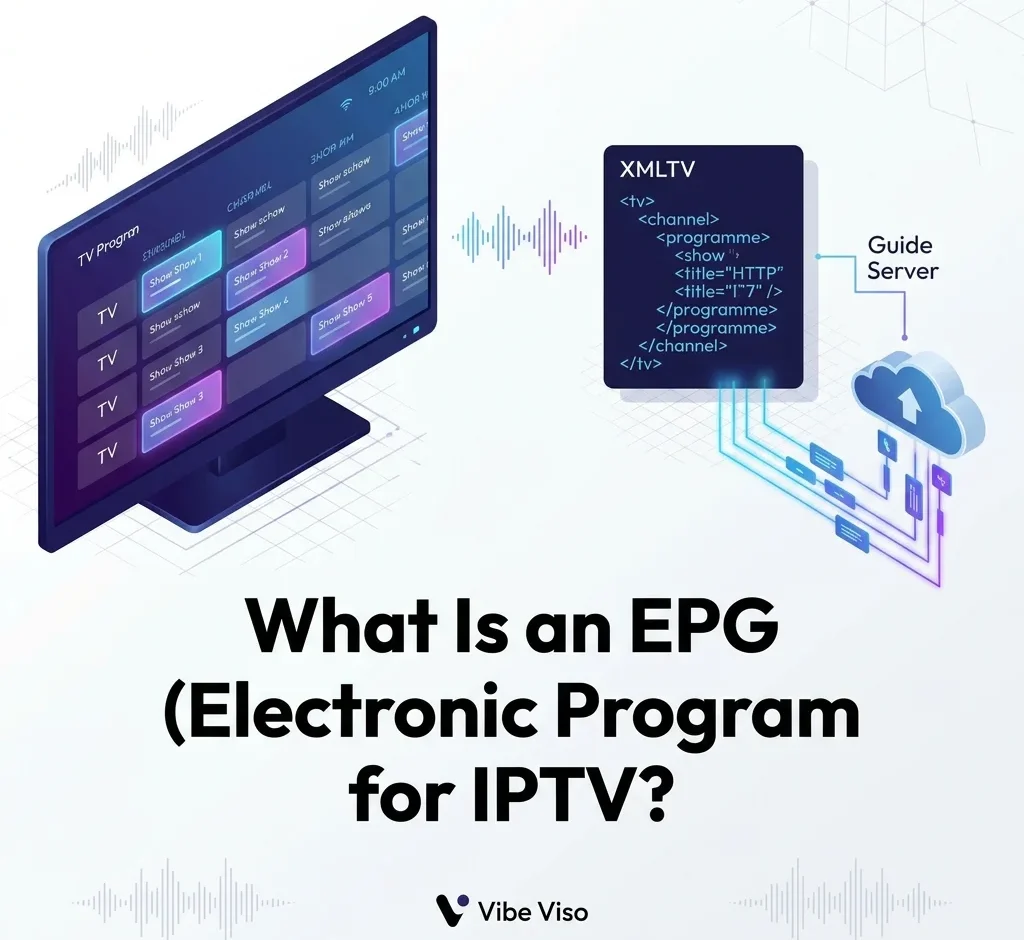
What Is an IPTV EPG (Electronic Program Guide)? Complete Setup & Fix Guide An IPTV EPG (Electronic Program Guide) is the interactive TV schedule inside your streaming app. It connects your playlist to program data — channel names, show timings, and descriptions — so your IPTV interface looks and behaves like a modern TV guide. To activate an IPTV EPG, you input a valid XMLTV URL or Xtream Codes credentials into your media player. EPG = interactive TV guide inside IPTV apps Powered by XMLTV files (.xml / .xml.gz) or Xtream Codes API How it links: matches M3U channels using tvg-id ↔ <channel id> Most common issue: tvg-id mismatch or case sensitivity errors Fix time issues: use the “Time Shift” setting in your player Best supported apps: TiviMate, IPTV Smarters, Kodi Simple Explanation: What Is an IPTV EPG? An IPTV EPG (Electronic Program Guide) is the TV guide inside your streaming app that shows channel names, program schedules, and what is currently playing or coming next. Without an IPTV EPG, your playlist only shows raw stream links with no information about what is on. EPG vs No EPG Experience The table below outlines the direct usability differences between configuring an IPTV player with and without EPG data: Feature / Experience With EPG Without EPG Channel Presentation Channel names, descriptions, and high-res logos Raw stream URLs and unformatted channel indexes Scheduling Visibility Complete program schedules showing current and future shows No scheduling information available User Navigation Easy, grid-based search, categories, and scrolling Confusing list of streams requiring blind clicking Interactive Options Supports catch-up TV links, program descriptions, and favorites Simple stream playback controls only EPG vs M3U Playlist While both are essential files for setting up an IPTV player, they serve entirely different purposes. Feature / Difference M3U Playlist EPG (Electronic Program Guide) Primary Function Contains the stream links and URLs for channels Contains the TV guide schedules and metadata Necessity Required to play any video streams Optional, but improves user experience Content Stream links, group titles, channel names Show descriptions, start/stop times, logos Format Text file starting with #EXTM3U XML document starting with <tv> Do You Need an EPG for IPTV? No, an IPTV EPG is not required to stream channels — but it significantly improves usability. Without an EPG, you can still watch live TV using your M3U playlist, but you won’t see program names, schedules, or descriptions. Most users only realize the importance of an IPTV EPG after using IPTV without one, where every channel appears as a plain stream link with no context. If you are using IPTV regularly, an EPG is considered essential for a proper TV-like experience. How Does an IPTV EPG Work? An IPTV EPG works by downloading program schedule data, storing it locally on your device, and displaying it as a grid-based TV guide inside your streaming app. Your IPTV app combines two data sources: the stream (video) from your M3U playlist and the schedule data from your EPG file. EPG File Example (Simple View) An EPG file is simply a structured XML file that contains channel names and program schedules mapped to timestamps. DTD-Compliant XMLTV Code Example xml <?xml version=”1.0″ encoding=”UTF-8″?> <!DOCTYPE tv SYSTEM “xmltv.dtd”> <tv generator-info-name=“Antigravity EPG Engine“ generator-info-url=“https://antigravity.domain“> <!– Channel Definition –> <channel id=“cbc.ca“> <display-name lang=“en“>CBC Television</display-name> <icon src=“https://antigravity.domain/logos/cbc.png“ width=“200“ height=“150“ /> <url>https://www.cbc.ca</url> </channel> <!– Programme Scheduling –> <programme start=“20260702180000 +0000“ stop=“20260702190000 +0000“ channel=“cbc.ca“> <title lang=“en“>CBC News: The National</title> <desc lang=“en“>Comprehensive coverage of Canadian and international news, with in-depth analysis and reporting.</desc> <category lang=“en“>News</category> <new /> </programme> </tv> The three core XMLTV tags: Tag Purpose <tv> Root element — wraps the entire EPG file <channel> Defines a channel with a unique id that links to your M3U tvg-id <programme> A single show with start, stop timestamps and channel reference Timezone Offsets & Time Shift Syncing One of the most common issues cord-cutters face is a guide that shows correct program details but shifts them by several hours (e.g., showing a 6:00 PM news broadcast as airing at 11:00 PM). This occurs due to failures in timezone offset parsing. In the XMLTV standard, timestamps are formatted using an ISO-like structure: YYYYMMDDHHMMSS +/-ZZZZ Let’s break down the timestamp 20260702180000 +0000: 2026 = Year 07 = Month (July) 02 = Day 18 = Hour (6:00 PM) 00 = Minute 00 = Second +0000 = Timezone Offset (UTC/GMT) If your IPTV provider outputs EPG timestamps in UTC (+0000), your IPTV player must calculate the offset difference between the EPG server time and your device’s local system time. If you live in Toronto, Canada (Eastern Standard Time, UTC-5), your player should automatically subtract 5 hours from the timestamp, displaying the broadcast as airing at 13:00:00 (1:00 PM local time). Why Time Synchronization Fails Missing Timezone Offsets: Some custom EPG grabbers omit the offset string entirely (e.g., start=”20260702180000″). Without the offset, the IPTV player defaults to UTC or the device’s local time, shifting the program grid by hours. Hardcoded Parsing Bugs: Lower-tier IPTV players use basic string-splitting algorithms that discard the timezone offset component, parsing only the initial timestamp block as local time. Incorrect Local System Time: If your Amazon Firestick or Android TV box has “Automatic Date & Time” disabled, or is set to an incorrect home timezone, the offset calculation will be off, shifting the guide grid. How to Fix Timezone Offsets If your guide shows correct program data but incorrect times, navigate to your player’s settings (e.g., TiviMate > Settings > Playlists > [Your Playlist] > EPG Sources > Time Shift). Adjust the time shift offset parameter (+1, -5, etc.) until the guide grid aligns with your local clock. Why IPTV Guides Display “No Information” (Case-Sensitive Mapping) A common frustration is importing a working M3U streaming playlist and a verified EPG source, only to find the guide grid displays “No Information Available” across all channels. This is usually caused by case-sensitivity matching errors. Your IPTV player matches the tvg-id in your M3U file against the id attribute in your EPG XML. This match is case-sensitive — a one-character difference causes the guide to display “No Information” even when both files are correct. If your M3U says tvg-id=”HBO.us” but your EPG says <channel id=”hbo.us”>, the match fails and the guide goes blank. Resolving Matching Failures Manual Player Mapping: Advanced IPTV players like TiviMate allow you to hover over a