
How to Install IPTV on Firestick in Canada: Complete Setup Guide (2026)

If you own an Amazon Firestick and you’re still paying Bell, Rogers, or Telus $90–$150 a month for a cable package that gives you 200 channels you never watch, this guide is for you.
This complete guide on how to install IPTV on Firestick in Canada walks you through every step — which device to buy, how to unlock it for third-party apps, which player to install, how to enter your VibeViso credentials, and how to fix the issues most Canadians run into — including the ISP throttling problem competitors never talk about.
IPTV on Firestick is how most Canadians are cutting that bill down to under $30 a month — without giving up TSN, Sportsnet, CBC, CTV, RDS, or any of the live sports and content that actually matters to them. The setup takes under 15 minutes and requires no technical background.
Why Firestick Is the Best Device for IPTV in Canada
There are a dozen ways to stream IPTV in Canada — Smart TVs, Android boxes, phones, tablets. But Amazon Firestick consistently wins for one simple reason: it delivers the best balance of price, app support, and ease of use for the average Canadian household.
Here is what makes it the go-to choice:
It plugs into any HDMI port on any TV you already own, turning it into a full smart TV in seconds. It runs Fire OS, which is built on Android — meaning virtually every major IPTV player app is compatible. It supports sideloading third-party apps through a tool called Downloader, which is available right in the Amazon App Store. And unlike Smart TV built-in IPTV apps, Firestick gets frequent OS updates, so the experience stays current and stable.
For Canadians specifically, Firestick’s combination of the Downloader app and compatibility with TiviMate, IPTV Smarters Pro, and XCIPTV makes it the fastest path from “I just got an IPTV subscription” to actually watching.
The main alternative Canadians consider is an Android TV box — devices like the Nvidia Shield or Formuler Z8 Pro. Android boxes offer more customization and slightly more processing power, but they cost significantly more ($100–$250 CAD), require more technical setup, and are overkill for the vast majority of IPTV users. For anyone who wants to plug in, set up in 15 minutes, and watch — Firestick wins on every practical measure.
Which Firestick Model Should You Buy for IPTV in Canada?
Not all Firestick models perform equally with IPTV. Here is a clear breakdown:
Fire TV Stick 4K Max (2nd Gen, 2023) — This is the one to buy if you want the best possible IPTV experience. It runs on a faster processor, supports Wi-Fi 6E for more stable connections during peak hours, and handles 4K HDR streams without dropping frames. If you’re watching NHL playoffs or Premier League live, this is where you want to be. Available at Best Buy, Amazon.ca, and Walmart Canada for approximately CAD $70–$80.
Fire TV Stick 4K (2nd Gen, 2023) — A strong choice that handles 4K streams well. Slightly slower than the 4K Max but the difference is minimal for most users. Good value at around CAD $55–$65.
Fire TV Stick HD (2024) — Handles 1080p HD streams perfectly well and costs around CAD $40–$45. A reasonable budget option if 4K is not a priority for you. Fine for general IPTV use, though it may occasionally struggle during very high-bitrate 4K live sports events.
Fire TV Stick Lite — The cheapest option and perfectly usable for standard HD IPTV. The remote lacks volume and power buttons for your TV, which gets annoying. Not recommended if you plan to watch a lot of live sports.
For most Canadians using VibeViso’s service, the Fire TV Stick 4K Max is the clear recommendation. The extra $15–$20 over the standard 4K model is worth it purely for the Wi-Fi 6E stability during peak Canadian viewing hours (evenings, weekend games).
What You Need Before You Start
Before touching your Firestick, make sure you have these four things ready. Skipping any one of them will cause you to stop halfway through:
1. Your VibeViso IPTV credentials. After subscribing to a VibeViso plan, you receive your login details by email within 15–30 minutes. This will be either an Xtream Codes login (a server URL, username, and password) or an M3U playlist URL. Keep that email open on your phone while you set up the Firestick.
2. A stable internet connection. For HD streaming, you need a minimum of 25 Mbps. For 4K, you want 50 Mbps or higher. If you’re on Bell Fibe, Rogers Ignite, Telus PureFibre, or Shaw, you’re almost certainly fine. If you’re on a slower rural DSL connection, stick to HD streams for now and use a wired connection if you have access to a powerline adapter.
3. Your Amazon Firestick set up and signed in. The device should be connected to your TV, signed into your Amazon account, and connected to your Wi-Fi. The initial Fire TV setup takes about five minutes if you haven’t done it yet.
4. A free account at troypoint.com Downloader (optional but helpful). Downloader has a code shortcut system. If your IPTV provider gives you a short Downloader code, you won’t need to type a long URL with the remote. VibeViso’s support team can provide the correct download link or code for your preferred IPTV player.
Step 1 — Unlock Your Firestick for Third-Party Apps
By default, Amazon locks Firestick to only allow apps from the official Amazon App Store. IPTV players like TiviMate and IPTV Smarters Pro are sideloaded apps, meaning they live outside the App Store. You need to unlock this before anything else.
This is the step most guides get wrong in 2026. Newer Firesticks running Fire OS 8 no longer have a single global “Allow Unknown Sources” toggle. Instead, they require you to enable app installation permissions per app — specifically for the Downloader app itself. Here is the exact process:
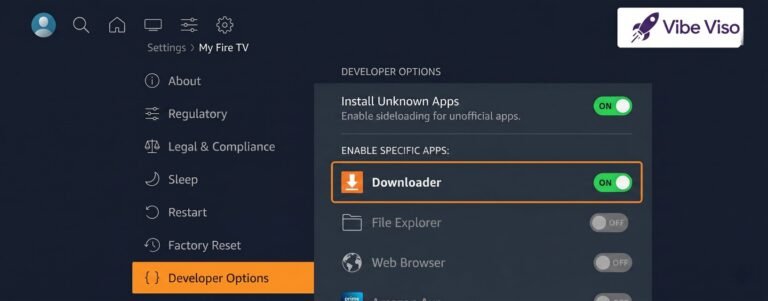
On Fire OS 8 (Firestick 4K Max, most 2023 and newer models):
Go to Settings on your home screen. Scroll right and select My Fire TV. If you don’t see a Developer Options menu, go into About, highlight your device name (it will say “Fire TV Stick 4K Max” or similar), and click the center button on your remote seven times. You’ll see a message saying “No need, you are already a developer” or “You are now a developer.” Back out to My Fire TV — Developer Options is now visible.
Inside Developer Options, enable ADB Debugging and Install Unknown Apps. On Fire OS 8, after enabling Install Unknown Apps, you will be taken to a screen showing individual apps. You need to toggle Downloader to On in this list. This step is unique to newer Firesticks and is the most common reason people get stuck with an “App not installed” error.
On Fire OS 7 (older Firestick 4K, Fire TV Stick 3rd Gen):
The path is identical — Settings → My Fire TV → Developer Options — but the toggle you’re looking for is simply Apps from Unknown Sources. Enable it and you’re done. No per-app toggle required.
Once this is complete, do not change these settings back. Leave them on for as long as you use IPTV on this device.
Step 2 — Install the Downloader App
Downloader is the app that allows you to install IPTV players onto your Firestick. It is made by AFTVnews and is available directly in the Amazon App Store — no sideloading required for this one.
From your Firestick home screen, go to the Find menu (the magnifying glass icon in the top navigation). Search for “Downloader” — spelled exactly like that. Select the app with the orange icon showing a white arrow. Click Download and let it install. Once installed, open it and accept the permission prompt for file access.
If Downloader asks you to enable its permissions under the Install Unknown Apps setting (Fire OS 8 only), go back to Settings → My Fire TV → Developer Options → Install Unknown Apps, find Downloader in the list, and toggle it on. Then return to Downloader and try again.
Step 3 — Choose and Install Your IPTV Player App
This is the most important choice in the entire setup. The IPTV player is the interface you’ll use every single day — for channel browsing, EPG (the program guide), recording, and VOD navigation. Here are the three best options for Canadian Firestick users in 2026:
TiviMate — Best Overall (Recommended)
TiviMate is the most widely used IPTV player in Canada and for good reason. It has a clean, TV-optimized interface with a full EPG grid (think: a proper channel guide like you’d see on cable), supports multiple playlists, catch-up TV, recording, and parental controls. The free version works but limits you to one playlist and no recording. The premium version costs approximately USD $5.49 per year through the TiviMate Companion app — genuinely one of the best value purchases in streaming.
TiviMate is not in the Amazon App Store, so you install it via Downloader. Open Downloader and in the URL bar, enter the Downloader code 927462 (this is TiviMate’s official shortcode). This will redirect you to the TiviMate APK download. Download and install it. When it asks if you want to install the app, click Install, then Done (not Open — go back to the Firestick home screen and find TiviMate in your apps).
Best for: Anyone who wants a proper channel guide, sports scheduling, and a premium TV experience.
IPTV Smarters Pro — Best for Beginners
IPTV Smarters Pro has a more guided, menu-driven setup that makes it slightly easier for first-time IPTV users. It supports Xtream Codes and M3U, organizes content into Live TV, Movies, and Series sections, and includes a built-in EPG. It is available directly in the Amazon App Store — search “IPTV Smarters Pro” and install it without needing Downloader at all.
The interface is not as polished as TiviMate and some users report it runs slightly slower on older Firestick models, but it is rock-solid for most users and requires zero sideloading.
Best for: First-time IPTV users who want the simplest possible setup.
XCIPTV — Best Modern Interface
XCIPTV is newer and has gained significant popularity in 2025–2026 for its modern, Netflix-style layout that feels native on a Firestick. It supports Xtream Codes API and handles large channel libraries (like VibeViso’s 40,000+ channels) efficiently without slowdown. Install via Downloader using the XCIPTV APK link available from your VibeViso support team.
Best for: Users who want the most visually modern streaming experience.
Step 4 — Enter Your VibeViso Login Credentials
This is where your VibeViso account actually connects to your IPTV player. After subscribing to any VibeViso plan, you’ll receive your credentials by email. There are two methods depending on what your email contains:
Method A: Xtream Codes API Login (Recommended)
Xtream Codes is the better method. It unlocks full EPG support, catch-up TV, proper VOD categories, and multi-device sync. Most VibeViso subscribers receive Xtream Codes credentials.
In TiviMate: Open TiviMate → Add Playlist → Xtream Codes. Enter your Server URL, Username, and Password exactly as they appear in your welcome email. Tap Add. TiviMate will load your channel list and EPG automatically. This may take 1–3 minutes for the initial load with a large channel library.
In IPTV Smarters Pro: Open the app → Add New User → Login with Xtream Codes API. Enter your Server URL, Username, and Password. Tap Add User. The app will populate with Live TV, VOD, and Series categories.
In XCIPTV: Open XCIPTV → Add Provider → Xtream Codes. Enter the same three details and save.
Method B: M3U Playlist URL Login
If your credentials email contains a long URL beginning with http:// that includes your username, password, and ends with type=m3u, that is your M3U playlist link.
In TiviMate: Add Playlist → M3U URL. Paste the full URL. Optionally add an EPG URL if VibeViso provides one (check your email or ask support). This method works but EPG may be less complete than Xtream Codes.
In IPTV Smarters Pro: Add New User → Load Your Playlist or File/URL. Paste the M3U URL and save.
If you are unsure which method to use or cannot find your credentials, contact VibeViso’s 24/7 support at [email protected] or via WhatsApp at +1 (902) 705-9412. The team responds quickly and can walk you through the exact steps for your account.
Step 5 — Load Your Channels and Start Watching
Once your credentials are entered, your IPTV player will sync with VibeViso’s servers and load your full channel library. On the first load, this takes 1–3 minutes depending on your internet speed — the app is pulling down 40,000+ channel entries and EPG data simultaneously.
After it loads, browse to the Live TV section and look for Canadian channels under their respective categories. Sports channels (TSN 1–5, Sportsnet, Sportsnet 360, Sportsnet World, TSN Direct) typically appear under a Sports category. CBC, CTV, Global, and City TV appear under Canadian or English-Canadian categories. RDS and TVA Sports appear under Français or Quebec categories.
Pin your most-watched channels to Favourites immediately — this becomes your daily home screen within TiviMate or Smarters. With TiviMate Premium, you can set a Favourites group as your default startup view, so you land directly on your channels every time you open the app.
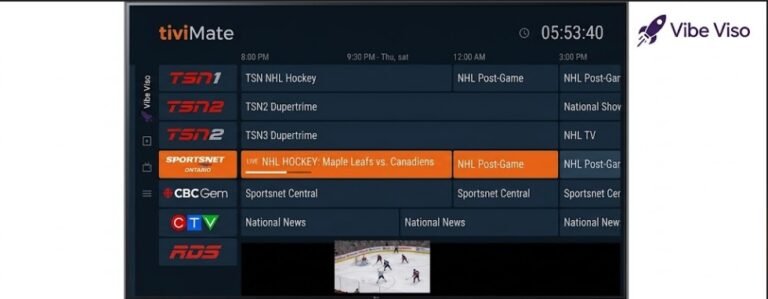
Canadian Channels You Get With VibeViso on Firestick
This is what most Canadians actually care about — and what separates a worthwhile IPTV service from a generic international channel dump. VibeViso’s 40,000+ channel library covers the full range of Canadian broadcasting:
Sports: TSN 1, 2, 3, 4, 5 — Sportsnet East, West, Ontario, Pacific, Sportsnet 360, Sportsnet World — CBC Sports — TVA Sports — RDS — RDS2 — Sportsnet Now equivalent channels — PPV events including UFC and boxing included in your plan at no extra cost.
News and General: CBC News Network — CTV News Channel — Global News — CP24 — BNN Bloomberg — City TV — APTN.
French-language: RDS — TVA — TVA Sports — RDS2 — Canal Vie — Séries+ — Historia (French).
Entertainment: HGTV Canada — Food Network Canada — W Network — Discovery Canada — History Channel Canada — Showcase — Adult Swim — Comedy Network.
International: VibeViso’s library also includes major US networks (ESPN, ESPN2, Fox Sports, NBC Sports, NFL Network, NBA TV), UK channels, South Asian channels (Punjabi, Hindi, Tamil, Urdu), and Arabic, Portuguese, and Spanish international packages — all accessible on the same Firestick without switching apps or subscriptions.
If you’re in one of VibeViso’s primary Canadian service cities, including Toronto, Vancouver, Montreal, Calgary, Edmonton, Ottawa, Mississauga, Brampton, North York, and Scarborough, your streams are routed through the nearest local server for the fastest possible performance.
How to Fix IPTV Buffering on Firestick in Canada
Buffering is the single biggest complaint about IPTV — and most of the time it is not the provider’s fault. In Canada, there are three specific causes that affect Firestick users more than anywhere else, and each has a different fix.
Cause 1: Your Canadian ISP Is Throttling Your IPTV Traffic
This is the most common cause of IPTV buffering in Canada and the one nobody talks about clearly. Bell, Rogers, Telus, and Shaw all practice network management — which is a polite term for slowing down specific types of internet traffic during peak hours (typically 7 PM–11 PM on weeknights and all day on weekends during major sports events).
IPTV traffic on ports 8080 and 1935 is particularly easy for ISPs to identify and throttle. You might notice your Netflix works perfectly while your IPTV stream buffers — this is exactly what ISP throttling looks like in practice.
The most effective fix is using a VPN on your Firestick. A VPN encrypts your traffic so your ISP cannot identify it as IPTV and throttle it selectively. ExpressVPN and NordVPN both have Firestick apps available directly in the Amazon App Store and both reliably bypass ISP throttling from Canadian providers. Connect to a Canadian VPN server (not a US one — that adds latency) and your buffering will typically disappear within seconds.
Alternatively, if you do not want to pay for a VPN, try changing the DNS on your Firestick network settings to Cloudflare’s 1.1.1.1 or Google’s 8.8.8.8. This does not encrypt your traffic but can sometimes bypass ISP-level DNS filtering that affects IPTV stream resolution.
Cause 2: Firestick RAM and Cache Overload
Firestick devices, even the 4K Max, have limited RAM. After using the device for several weeks, cached data from apps accumulates and slows everything down — including IPTV stream loading.
Fix this by clearing your IPTV app’s cache regularly: Settings → Applications → Manage Installed Applications → find your IPTV player (TiviMate or Smarters) → Clear Cache. Do this once every two weeks. Also close background apps before launching your IPTV player. On the Firestick home screen, hold the Home button and select “App Manager” or simply restart the device before a big match.
Cause 3: Wi-Fi Signal Interference
Most Canadian homes run 2.4 GHz Wi-Fi networks that are shared by every device in the household. During peak evening hours, interference from neighbours’ networks compounds this. Firestick’s Wi-Fi antenna is small and positioned at the back of your TV — often the worst possible location for signal reception.
The fastest fix is an HDMI extender cable. Amazon includes one in most Firestick packages — a short cable that moves the Firestick away from the TV body and improves antenna reception significantly. Beyond that, if you have a newer router with 5 GHz or Wi-Fi 6 support, connect your Firestick 4K Max to the 5 GHz band. It is faster, less congested, and dramatically improves IPTV stream stability.
Audio Out of Sync on Firestick?
If your video plays fine but the audio is slightly behind or ahead of the picture, this is a decoder conflict — not a server or connection issue. Fix it in under 30 seconds: in TiviMate go to Settings → Player → Decoder and switch from Hardware to Software (or vice versa, depending on what it’s currently set to). In IPTV Smarters Pro, go to Settings → Player Settings and toggle the same option. One switch almost always resolves it immediately
Internet Speed Requirements for IPTV on Firestick in Canada
| Stream Quality | Minimum Speed | Recommended Speed |
|---|---|---|
| Standard Definition (SD) | 5 Mbps | 10 Mbps |
| High Definition 1080p (HD) | 15 Mbps | 25 Mbps |
| 4K Ultra HD | 35 Mbps | 50 Mbps+ |
| 4K + Multiple Devices | 50 Mbps | 100 Mbps+ |
One important note for Canadian households: these speeds refer to your actual throughput, not your plan speed. Bell Fibe 500 Mbps is plenty — but if your router is old, your Wi-Fi is congested, or your ISP is throttling during peak hours, your actual throughput to the Firestick may be significantly lower. Run a speed test directly on the Firestick (search “Internet Speed Test” in the App Store) rather than on your phone for the most accurate reading.
Is IPTV Legal in Canada?
IPTV technology itself is completely legal in Canada — it is simply a method of delivering television content over an internet connection, the same way Netflix and Crave do. What determines legality is whether the service provider holds appropriate licensing for the content they deliver. This is why choosing a transparent, professionally operated service matters.
One specific mechanism Canadians should understand is the Notice and Notice Regime — a Canadian law that requires ISPs to forward copyright infringement notices to subscribers whose connections are flagged. It does not result in automatic fines or disconnection, but repeated notices can trigger bandwidth throttling or mandatory mediation with rights holders. Choosing a properly operated service eliminates this exposure entirely.
For a deeper understanding of how IPTV technology works and why it is a mainstream legal technology, read our full guide on what IPTV technology is. VibeViso operates with a clear commitment to network compliance, enterprise-grade encryption, and transparent service terms — you can review the full framework on our terms and conditions page.
Frequently Asked Questions
Can I use my VibeViso subscription on multiple Firestick devices?
Standard VibeViso plans support one active connection at a time. If you want to stream on multiple TVs simultaneously — for example, one person watching hockey in the living room while another watches movies in a bedroom — contact VibeViso support about multi-connection options. Each active stream needs its own connection slot.
Do I need to jailbreak my Firestick to use IPTV?
No. The setup in this guide — enabling Developer Options and using Downloader — is the official method Amazon provides for installing apps outside the App Store. It does not modify or jailbreak the device. Your Amazon warranty remains valid.
What is the best IPTV app for Firestick in Canada in 2026?
TiviMate is the best overall for Canadian users because of its full EPG grid, catch-up TV support, and stability with large channel libraries. IPTV Smarters Pro is the easiest for beginners because it requires no sideloading. If you want a modern interface closer to Netflix, XCIPTV is the best-looking option.
What internet speed do I need to watch TSN 4K on Firestick?
For 4K live sports on TSN or Sportsnet, you need a reliable 35–50 Mbps throughput to the Firestick. Most Bell Fibe, Rogers Ignite, and Telus PureFibre plans exceed this easily. The main risk is ISP throttling during peak hours — if you notice buffering only during big games, a VPN set to a Canadian server will typically resolve it immediately.
My channels loaded but the EPG (program guide) is empty. What do I do?
EPG data can take up to 10–15 minutes to fully load on the first sync, especially with a large library. In TiviMate, go to Settings → EPG → Force EPG Update and wait. In IPTV Smarters, go to Settings and trigger an EPG refresh. If it remains empty after 20 minutes, your M3U URL may not have an EPG source attached — switch to Xtream Codes login instead, which pulls EPG data automatically from VibeViso’s servers.
Will IPTV work on my older Firestick (3rd Gen or Fire Stick HD)?
Yes, all Firestick models support IPTV. Older models running Fire OS 7 actually have the simpler “Apps from Unknown Sources” toggle rather than the per-app system on Fire OS 8. The setup is slightly easier on older devices. The trade-off is that older Firesticks may struggle with very high-bitrate 4K streams — HD streams play without issue on any model.
Does VibeViso work in cities outside Toronto and Vancouver?
Yes. VibeViso provides IPTV services across Canada in all major cities and provinces. Your Firestick connects to the nearest VibeViso server automatically based on your location, giving you the lowest possible latency regardless of whether you’re in Montreal, Calgary, Ottawa, Edmonton, Brampton, Mississauga, or smaller cities and rural areas across the country. For city-specific information, see the IPTV service in Toronto or IPTV service in Vancouver pages.
How do I get started with VibeViso on Firestick?
The fastest way is to start with the VibeViso free trial — no credit card required. You’ll receive login credentials within minutes and can test the full channel library, stream quality, and EPG on your Firestick before committing to a paid plan. If you’re ready to subscribe directly, the VibeViso pricing page has all available plans starting from $30.99 for 3 months.
Does IPTV use a lot of data on Firestick?
Yes, and it is worth knowing before you start — especially if you are on a capped plan. HD streaming at 1080p uses approximately 3GB per hour. 4K streaming uses 7GB or more per hour. For most Canadian households on Bell Fibe, Rogers Ignite, or Telus PureFibre unlimited plans, this makes no practical difference. If you are streaming from a mobile hotspot, a cottage connection, or a capped DSL plan, stick to HD quality in your IPTV player settings to keep data consumption manageable.
Start Watching on Your Firestick Today
The setup process described in this guide takes most Canadian users between 10 and 15 minutes from start to finish. At the end of it, you have 40,000+ live channels, 500,000+ VOD titles, and every major Canadian sports network — TSN, Sportsnet, CBC, RDS — streaming in 4K on your TV through a $40–$80 device that plugs into your existing HDMI port.
There are no contracts, no equipment rentals, no technician visits, and no cable company holding your sports access hostage behind a $30/month sports add-on package.
For questions about setup, your credentials, or anything in this guide, the VibeViso support team is available 24/7 via live chat and WhatsApp.
Start your free 24-hour trial → No credit card. No commitment. Full access in 15 minutes.
7 Responses