
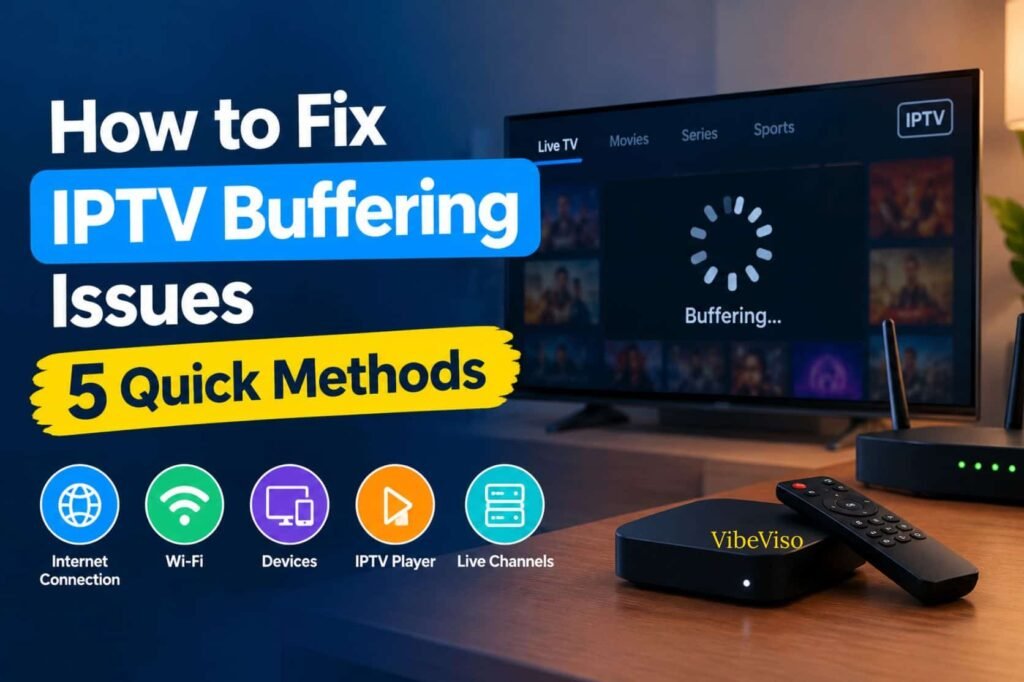
IPTV buffering happens when video playback pauses, loads repeatedly, or freezes because the stream is not receiving data consistently enough for continuous playback. Internet connection stability, Wi-Fi performance, streaming devices, IPTV players, and live TV stream delivery can all affect playback. If your IPTV keeps buffering, start by identifying whether the issue is related to your connection, device, player, or the stream itself.
In this guide, you’ll learn how to fix IPTV buffering issues at home using five practical troubleshooting methods. These include checking your internet connection, improving network stability, restarting your streaming device and router, reviewing IPTV player and device performance, and determining whether the problem may be related to the IPTV service or specific live TV streams.
The quickest approach is to test one factor at a time rather than changing multiple settings simultaneously. This helps you identify the actual source of the IPTV buffering issue and choose the appropriate fix without making unnecessary changes to your setup.
What You’ll Learn
IPTV keeps buffering when the video stream cannot consistently deliver enough data for smooth playback. Common factors include an unstable internet connection, Wi-Fi interference, network congestion, device performance, IPTV player behavior, or problems affecting the streaming server or particular channel. A fast connection alone does not guarantee uninterrupted streaming.
When IPTV buffering problems happen repeatedly, identify whether the issue occurs on one channel, all channels, one device, or multiple devices. Testing the same stream on another supported device or connection can help separate a local streaming device or network problem from a broader streaming issue.
Common factors to check:
IPTV buffering issues occur when the streaming data reaching the IPTV player is not arriving consistently enough to maintain playback. During live TV, the player receives a continuous stream of video data and maintains a temporary buffer to help absorb normal variations in delivery. If incoming data falls behind what the player needs, playback can pause or freeze.
A useful way to understand IPTV streaming issues is to separate the process into three parts: the stream source sends data, the network transports that data, and the streaming device and player receive and decode it. A problem in any of these areas can affect playback.
The main areas to check are:
Network stability: An unstable Wi-Fi or internet connection can interrupt the continuous delivery of streaming data.
Available bandwidth: Other devices or activities on the same network can reduce the bandwidth available to the streaming device.
Streaming device: Device performance or connectivity can affect how reliably the IPTV player receives and processes the stream.
IPTV player: Player compatibility, configuration, or playback behavior can contribute to interruptions.
Stream source: If a specific live channel repeatedly buffers while other channels play normally, the problem may be associated with that particular stream or source.
For this reason, how to stop IPTV buffering during live channels is not always a matter of increasing internet speed. Testing the connection, device, player, and affected streams separately gives you a clearer way to identify the actual source of the problem.
IPTV buffering with fast internet connection can still happen because download speed is only one part of streaming performance. Latency, jitter, packet loss, Wi-Fi signal quality, network congestion, available bandwidth, device performance, and the stream itself can affect playback. Live streaming can experience interruptions even when the connection appears capable of sustaining the average streaming bitrate.
For example, a speed test may show a high download speed while the streaming device is receiving an inconsistent Wi-Fi connection. Similarly, other devices using the same network can consume available bandwidth, leaving less capacity for IPTV streaming.
Why good speed may not be enough:
Download speed: Shows how quickly data can generally be downloaded, but does not describe every aspect of connection quality.
Latency: Measures the delay involved in data communication and can affect real-time applications.
Jitter: Variations in network timing can make continuous data delivery less consistent.
Packet loss: Missing data packets may interrupt the stream.
Wi-Fi signal: A weak or interfered wireless connection can reduce practical performance at the TV or streaming device.
Bandwidth usage: Multiple devices streaming, downloading, gaming, or performing other network-intensive activities can compete for available capacity.
To investigate why IPTV buffers on high speed internet, run a speed test on or immediately beside the device you use for streaming, rather than relying only on the speed advertised by your internet provider. Testing at the TV location can reveal differences caused by Wi-Fi range or interference. You can also temporarily reduce activity from other devices and compare playback.
So, IPTV freezing despite good download speed does not automatically indicate that your internet package is too slow. The goal is to determine whether the limitation is speed, stability, Wi-Fi, device performance, or the stream itself.
IPTV buffering does not always come from the provider. The cause can be on the user’s side—such as network instability, Wi-Fi, an IPTV player, or a streaming device—or it can involve the streaming server or channel source. Testing the same content through another device or connection can help determine which part of the setup is contributing to the problem.
A practical way to investigate IPTV buffering from service provider or internet is to compare the behavior under controlled conditions:
| Test | What it can indicate |
|---|---|
| One channel buffers, others work | Possible channel/source-specific issue |
| All channels buffer on one device | Possible device, player, or local network issue |
| Same account buffers on multiple devices | Broader service/network issue becomes more plausible |
| IPTV works on mobile data but buffers on Wi-Fi | Wi-Fi/home-network issue becomes more plausible |
| Other streaming services also buffer | Local network or device issue becomes more plausible |
| IPTV continues buffering across different networks and devices | Provider/stream source should be investigated |
These tests do not prove the provider is responsible by themselves; they help narrow down where the problem may be occurring.
If you need to contact an IPTV provider, provide useful troubleshooting information such as the affected channel, approximate time of the problem, streaming device, IPTV player, network type, and whether other channels or devices work normally. This gives support a clearer picture of the issue instead of simply reporting that the service is buffering.
The key question is therefore not simply “Is my IPTV provider causing the buffering?” but rather “Where does the buffering occur in my streaming setup?” Checking the network, IPTV player, streaming device, and channel source separately makes that distinction much easier.
If you want to stop IPTV buffering during live channels, troubleshoot the connection first, then check your Wi-Fi, router, streaming device, and IPTV Online player before assuming the streaming server is responsible. The quickest approach is to change one variable at a time and replay the same live channel after each test. General streaming guidance from Google also recommends checking the connection, reducing competing network activity, restarting devices, and testing another connection or device when playback problems continue.
Use these five methods in order. If one method does not change the buffering pattern, move to the next rather than repeatedly applying the same fix.
The first step is to check the Internet Connection directly from the streaming device you use for IPTV. A speed test can show the available Download Speed, but stable playback also depends on consistent network delivery. Other devices using the same Bandwidth, Wi-Fi conditions, and network congestion can affect the connection available to your IPTV stream.
What to check:
A useful distinction is speed versus stability. A connection can have sufficient advertised speed while the actual connection to the streaming device is affected by Wi-Fi conditions, congestion, or other network factors. Google specifically recommends testing the connection and notes that multiple devices on the same network can reduce the speed available to a device.
If the issue occurs mainly during busy periods, compare a speed test and the same live stream at a quieter time. If your connection remains consistently problematic across other streaming services and devices, contacting your Internet Service Provider (ISP) may be appropriate.
Yes. Why IPTV buffers on high speed internet can involve more than download speed. Latency, jitter, packet loss, Wi-Fi signal quality, bandwidth competition, device performance, and the streaming source can all affect continuous playback. A high speed-test result therefore does not automatically rule out a network or playback problem.
For IPTV freezing despite good download speed, run the test on the actual streaming device and compare it with another device or connection when possible. If the speed is adequate but the stream still buffers, continue checking Wi-Fi, the device, the IPTV player, and the particular stream instead of simply upgrading your internet package.
If IPTV buffering on WiFi but not mobile data occurs, the home Wi-Fi connection becomes an important variable to test. Distance from the Router, physical obstacles, wireless interference, network congestion, or the selected Wi-Fi band can affect the connection reaching your Streaming Device. Google TV troubleshooting guidance recommends checking the Wi-Fi connection, moving the router closer, and using a wired connection where possible.
Try these steps:
The 2.4 GHz and 5 GHz bands have different characteristics, so the closest or fastest-looking option is not automatically the most stable in every home. What matters for this troubleshooting test is whether changing the connection improves playback at the actual streaming location.
An Ethernet connection can be a useful troubleshooting test because it removes the wireless portion of the connection between the router and the streaming device. If IPTV becomes more stable over Ethernet, that provides evidence that Wi-Fi conditions may have contributed to the problem. Google TV recommends using a cable connection as one possible step when dealing with connection problems.
However, Ethernet does not automatically solve every IPTV buffering problem. If buffering continues over a stable wired connection, continue checking the IPTV player, streaming device, internet connection, or streaming source.
Restarting the IPTV player, streaming device, and router can clear temporary connection or application states that may interfere with playback. It is a simple troubleshooting step, but it should be treated as a diagnostic method rather than a permanent solution for every IPTV freezing problem. Google recommends restarting devices and routers as part of troubleshooting playback and connectivity issues.
Follow this sequence:
Testing the same channel after each restart helps you determine whether the interruption was temporary or whether the underlying issue remains.
Restarting a router can sometimes help with temporary network or connectivity problems, which is why it is included in standard TV and streaming troubleshooting guidance. Google TV specifically recommends rebooting the router when a TV has connection problems.
However, how to reduce IPTV buffering at home cannot be reduced to restarting the router every time. If IPTV keeps freezing during live streaming after the router and device have been restarted, move to the next troubleshooting step and investigate the player, device, Wi-Fi conditions, or stream itself.
If the network appears stable but the IPTV player keeps freezing during live streaming, check the player and streaming device next. Compatibility, available storage, background applications, device resources, and supported playback options can affect how video is processed. Google TV recommends restarting devices, closing background apps, checking updates, and clearing app data when applicable to playback problems.
Check the following:
If IPTV buffering after installing a new player started only after the change, comparing the previous player or configuration can help identify whether the change is relevant.
Yes, IPTV player settings can affect streaming performance, but the exact options vary between players and devices. Settings related to decoding, playback, caching, or supported video formats may behave differently depending on the device and stream.
Do not assume that changing a particular setting will fix every buffering problem. Instead, change one supported setting at a time, replay the same content, and compare the result. If changing players makes no difference, continue investigating the network, streaming device, or stream source rather than repeatedly changing player settings.
To determine how to know if IPTV buffering is caused by provider, compare the same service across different channels, devices, or network connections. If only one channel buffers while others play normally, the issue may be specific to that Channel Source. If the same problem follows the account across different devices and networks, the IPTV Provider or Streaming Server becomes an important part of the investigation.
Use a simple comparison:
| Test | What the result can tell you |
|---|---|
| One live channel buffers, other channels work | Possible channel-specific or source issue |
| All channels buffer on one device | Device, player, or local network needs investigation |
| Same account buffers on multiple devices | Broader service or network issue becomes more plausible |
| IPTV works on another network | Home network becomes a stronger suspect |
| IPTV works on another device using the same network | Original device or player becomes a stronger suspect |
| Live TV buffers while other content works | Live stream/source conditions should be investigated |
These tests do not independently prove that an IPTV provider is responsible. They help isolate whether the problem follows the network, device, player, account, or particular stream.
If you contact Customer Support, provide useful details such as the affected channel, approximate time, device model, IPTV player, network type, and whether other channels work. This gives the provider more actionable information than simply reporting that the service is buffering.
Why does IPTV VOD work but live TV buffers can have several explanations because VOD and Live Streaming are delivered under different playback conditions. Live content must be delivered continuously as the event is happening, while on-demand content can generally use more flexibility in buffering and playback. Live streaming guidance notes that network congestion and other delivery factors can cause live-streaming issues even when a network can sustain an average bitrate.
If IPTV live channels are buffering but movies work, compare several live channels rather than assuming the entire service has the same problem. If only certain live channels buffer, the Streaming Source or individual channel delivery may need investigation. If all live channels buffer while VOD remains stable, compare the same account on another supported device or network.
VOD working normally therefore does not automatically mean that the live-streaming path is problem-free, and it also does not automatically prove that the provider is responsible. The comparison helps identify which part of the Network, Streaming Server, or Live Streaming path needs further investigation.
If IPTV is still buffering after checking your internet connection, improving Wi-Fi, restarting your router and device, reviewing the IPTV player, and testing different streams, the next step is isolation rather than repeating the same fixes. Compare devices, networks, and channels to identify whether the issue is local or service-side.
Start by recording what happened after each method. For example, note whether restarting the router changed the buffering, whether an Ethernet test improved playback, whether another IPTV player behaved differently, and whether the problem affected one channel or every channel. Testing one variable at a time makes the result easier to interpret.
If the same IPTV buffering issue appears on multiple devices and networks but only affects particular channels, the pattern points toward the stream, Channel Source, or service-side delivery rather than simply your home Wi-Fi. If every channel buffers only on one device, investigate the Streaming Device or IPTV Player first.
Keep a simple record of:
Device used
IPTV player used
Network type
Affected channel
Date and time
Whether other channels worked
Whether another device reproduced the problem
Whether another network changed the result
This information gives you a much clearer basis for contacting the IPTV provider if the IPTV streaming issues continue.
The most reliable approach is a controlled comparison: keep one variable unchanged while changing another. Test the same channel on the same device using a different network, then test that network with another device. Finally, compare the affected channel with several working channels. This helps separate device, network, and service-related IPTV buffering.
Use this sequence:
Same device + different network: Connect the streaming device to another reliable connection and test the same channel. If buffering disappears, investigate your original Internet Connection, Wi-Fi, or network route.
Same network + different device: Test the same IPTV account and channel on another compatible device. If the second device works normally, investigate the original Streaming Device, IPTV player, storage, or playback configuration.
Different channel test: Play several channels from different categories. If only one or a small group buffers while others remain stable, record those specific channels for further investigation.
Repeat under similar conditions: Test at approximately the same time and for a similar duration so that changing network conditions do not distort the comparison.
Record the pattern: A controlled test is more useful than changing multiple settings at once because you can identify which variable actually changed the result.
Google’s general streaming troubleshooting guidance similarly recommends trying another internet connection and another supported device when playback problems continue.
Device-specific troubleshooting should focus on four areas: network connection, application compatibility, device performance, and IPTV player configuration. Restart the device, test its network connection, confirm the IPTV app is compatible and updated, and check whether storage or background applications are affecting performance. Exact settings vary by device and app.
How To fix IPTV buffering on a Firestick, first restart the Amazon Fire TV Stick and retest the same stream. Then check the device’s network connection and compare playback with another compatible connection if possible. If buffering continues, check the IPTV App’s compatibility, available storage, background activity, and supported player settings.
A practical Firestick test is:
Restart the Firestick.
Reconnect or verify the Wi-Fi connection.
Run a network/speed test on the device.
Close unnecessary background apps.
Check available device storage.
Reopen the IPTV App and test the same channel.
If available, test another compatible IPTV Player.
Compare the result with another device or network.
Restarting, closing background applications, and checking updates are standard troubleshooting steps for slow or freezing Google TV devices and similar streaming environments.
For persistent Firestick-specific problems, use your detailed Firestick IPTV buffering guide for device-level troubleshooting rather than repeating general network fixes.
For Smart TV IPTV buffering, first test the television’s own network connection rather than relying on the speed reported by another device. Restart the IPTV App, check for relevant TV or app updates, and compare Wi-Fi playback with an Ethernet connection when available. Google recommends checking the network, restarting the device, installing updates, and testing a wired connection where possible.
Test the Smart TV in this order:
Check the TV’s Internet Connection.
Restart the IPTV App.
Restart the Smart TV.
Check available TV software and app updates.
Test the same stream over Ethernet if available.
Compare another channel to determine whether the issue affects one Channel Source or the entire service.
Check whether the TV’s hardware and operating system support the IPTV application properly.
Samsung and LG Smart TVs can use different operating systems and application environments, so IPTV App compatibility and available settings can differ by model. Avoid assuming that a setting available on one Smart TV platform will exist on another.
For a deeper device-specific process, use the IPTV Buffering on Smart TV Guide.
For an Android TV Box, start with a device restart and network test, then investigate the IPTV Player and device performance. Close unnecessary background processes, check available Storage, and confirm that the player and stream configuration are compatible with the Android TV environment.
Use this sequence:
Restart the Android TV Box.
Test the Internet Connection directly on the device.
Close unnecessary background applications.
Check available storage.
Reopen the IPTV Player.
Test the same channel and then another channel.
If the player supports it, compare available playback or Hardware Decoder settings.
Test another compatible IPTV Player only after recording the original settings.
Background applications, app updates, system updates, and device restarts can affect general streaming-device performance, so these checks should be completed before assuming that the IPTV service itself is responsible.
Before buying an IPTV Subscription, test the service under the conditions in which you actually plan to watch. Use your own Streaming Device, Internet Connection, preferred IPTV Player, and normal viewing times. A useful trial should let you evaluate relevant Live TV, VOD playback, device compatibility, streaming stability, customer support, and subscription terms before committing.
During testing, do not judge the service from one channel or one short playback session. Test several channels, including the content you actually care about, and compare live and on-demand playback. Also check how the service performs during your normal evening viewing period if that is when you typically watch.
During an IPTV Free Trial, test the service on your own device and home network rather than relying only on screenshots, advertised channel counts, or another person’s experience. Check your most important Live TV channels, VOD playback, device compatibility, playback stability, support responsiveness, and the actual service terms before choosing a subscription.
Use this checklist:
Your viewing device: Test the Firestick, Smart TV, Android TV Box, phone, or other device you actually intend to use.
Relevant live channels: Search for the specific channels and programming you expect to watch.
Different viewing times: Test at more than one time of day, especially your normal viewing period.
Live TV and VOD: Compare live-channel playback with on-demand content rather than testing only one content type.
Playback stability: Observe channel loading, freezing, buffering, picture quality, and channel switching.
Device compatibility: Confirm that the IPTV Player and device combination works as expected.
Customer Support: Ask a practical setup or channel-availability question and evaluate the response.
Service terms: Review the trial duration, subscription price, renewal conditions, refund policy, supported devices, and any account restrictions before paying.
VibeViso’s current Toronto service page states that it offers a 24-hour trial and specifically recommends testing the service on your own internet connection and preferred device before selecting a longer subscription.
Want to evaluate an IPTV service on your own device? Explore the available VibeViso Free Trial details before making a subscription decision.
Contact your IPTV Provider when buffering remains persistent after you have checked your Internet Connection, tested another device or network where possible, restarted the equipment, and compared multiple channels. Support becomes particularly useful when the same IPTV service buffering pattern appears across devices or when specific channels consistently fail while others work.
Before contacting support, document the troubleshooting results instead of simply reporting that “IPTV keeps buffering.” A provider can investigate the issue more effectively when you identify the affected channel, device, player, network type, timing, and steps already attempted.
You should also distinguish between a single-channel issue and an all-channel issue. A problem affecting one channel may require investigation of that channel’s Channel Source or stream delivery, while widespread buffering provides a broader troubleshooting pattern.
Send concise, testable information so the Customer Support team can reproduce or investigate the problem. Include your Device model, IPTV Player, affected channel, date and time, Network type, speed test result, issue frequency, and troubleshooting steps already attempted.
A useful support message should contain:
Device model: For example, Firestick, Samsung Smart TV, LG Smart TV, or Android TV Box.
IPTV Player name: Include the exact application or player being used.
Affected channel: Give the channel name and, if relevant, category or stream.
Date and time: Include when the buffering occurred and your local time zone if relevant.
Network type: State whether you used Wi-Fi, Ethernet, or another connection.
Speed test result: Provide the result from the affected device rather than relying only on your internet plan’s advertised speed.
Issue frequency: Explain whether buffering happens continuously, every few minutes, only occasionally, or only at certain times.
Tests already attempted: Mention router restart, device restart, player changes, different channels, another device, or another network.
Comparison result: State whether other channels or devices worked normally.
This level of detail reduces repeated troubleshooting and gives support a clearer picture of whether the issue is associated with the Device, Network, IPTV Player, Server, or specific Channel Source.
If your IPTV keeps buffering, do not change several settings at once. Start by identifying the buffering pattern, then test your Internet Speed, network, Streaming Device, and IPTV Player one step at a time. If the issue continues after these checks, compare channels, devices, and networks before contacting your IPTV Provider.
Step 1 — Identify the Pattern
First, determine exactly when the IPTV buffering problem occurs. Check whether only one channel buffers or whether all channels are affected. Then observe whether buffering happens continuously, every few minutes, or mainly during a specific time of day.
Also compare devices if more than one is available. If only one Streaming Device buffers while another works normally, investigate that device or its IPTV Player before changing your entire network setup.
Record these three points:
One channel or all channels?
All the time or at specific times?
One device or multiple devices?
This pattern gives you a starting point for the remaining troubleshooting steps.
Step 2 — Test Internet Stability
Run a speed test directly on the Streaming Device experiencing buffering rather than relying only on the speed advertised by your internet plan. Then check whether other devices are heavily using the same connection.
A fast connection can still experience streaming problems when the connection is unstable or household bandwidth is heavily occupied. Google recommends checking the connection and considering other devices using the network when troubleshooting video playback issues.
Check:
Internet Speed on the affected device
Wi-Fi stability
Other devices streaming or downloading
Whether the problem changes at different times
If your connection appears stable but IPTV still buffers, continue to the network test rather than repeatedly testing internet speed.
Step 3 — Test the Network
Restart the Router and then reconnect the streaming device. Check whether the device has a strong and consistent Wi-Fi connection and whether its position relative to the router could be affecting playback.
If possible, test the same IPTV stream through Ethernet. A wired test can help determine whether Wi-Fi conditions are contributing to the problem. Google TV troubleshooting guidance also recommends restarting the router and trying a wired connection where available.
Test in this order:
Restart the router.
Reconnect the streaming device.
Check the Wi-Fi connection.
Reduce unnecessary network activity.
Test the same stream over Ethernet if available.
If Ethernet improves playback while Wi-Fi continues buffering, investigate the Wi-Fi environment before assuming the IPTV service is responsible.
Step 4 — Check Device & Player
Next, check the IPTV Player and Streaming Device. Restart the IPTV app and device, then retest the same channel. If the player provides relevant playback or decoding settings, review them without changing multiple settings simultaneously.
Also check whether the device has sufficient available storage and whether unnecessary applications are running in the background. Restarting devices, closing unnecessary apps, and checking for updates are standard streaming-device troubleshooting steps.
Check:
IPTV App restart
Streaming Device restart
Relevant IPTV Player settings
Device performance
Available storage
Background applications
If the problem occurs only on one device, continue investigating that device or player. If the same buffering pattern appears elsewhere, move to the source investigation.
Step 5 — Investigate the Source
If your Internet Connection appears stable and the issue remains after testing the device and network, compare the same IPTV service across different channels, devices, and networks.
Test:
A different channel
A different device
A different network
The same affected channel again
If only a specific channel consistently buffers while other channels work normally, record the channel name and testing conditions. If the same issue follows the service across multiple devices and networks, collect your troubleshooting results and contact the IPTV Provider or Customer Support.
When contacting support, provide the device model, IPTV Player name, affected channel, date and time, network type, speed-test result, issue frequency, and steps already attempted. This gives support actionable information instead of only reporting that the IPTV keeps buffering.
Following this sequence helps you fix IPTV buffering systematically: identify the pattern → test internet stability → test the network → check the device and player → investigate the source.
IPTV buffering every few minutes can result from intermittent Internet Connection instability, Wi-Fi interference, device or IPTV Player problems, or an issue affecting the particular stream being watched. A useful first test is to compare another channel, another device, or another network rather than immediately changing multiple settings.
If other channels play normally, record the affected channel. If every channel buffers on one device, investigate the device or player. If the same problem follows the account across multiple devices and networks, collect the test results and contact the provider.
The best ways to fix IPTV buffering issues include checking your internet speed, restarting your router and streaming device, using a stable Ethernet connection, reducing network traffic, clearing app cache, and lowering video quality when necessary.
A faster internet connection can help when insufficient bandwidth is the limiting factor, but higher download speed does not automatically eliminate IPTV buffering. Playback can also be affected by connection stability, network congestion, Wi-Fi conditions, device performance, and the stream itself.
Run the speed test on the actual streaming device and repeat it under normal viewing conditions. Also consider how many other devices are using the same network because simultaneous activity can reduce the bandwidth available to the streaming device.
How To fix IPTV buffering issues, restart your router and IPTV device, check your connection stability, close unnecessary apps, and reduce other network activity. If buffering continues, test another network or check whether the streaming service is experiencing technical problems.
IPTV that buffers mainly at night may be affected by increased Household Bandwidth use, local or ISP network congestion, or a provider-side issue that becomes noticeable during busy viewing periods. However, the time pattern alone does not identify the cause.
Use a controlled comparison: test the same channel during the day and evening, record the device and network conditions, and compare whether other channels show the same behavior. Network congestion can affect live streaming even when the connection normally has enough capacity.
How To fix IPTV buffering issues on Smart TV, restart your TV and router, check the Wi-Fi signal, clear the IPTV app cache, and use an Ethernet connection if available. Updating the TV and IPTV app can also improve streaming performance.
Yes, an IPTV Player can influence playback when its compatibility, available settings, decoding method, or interaction with the device does not work well with a particular stream. However, player-related buffering should be distinguished from network or source-side problems through controlled testing.
Test the same channel with another compatible player only when possible, while keeping the device and network unchanged. If the issue disappears, the player configuration becomes a relevant variable. If both players show the same behavior, investigate the network, device, or stream instead.
How To fix IPTV buffering issues on Firestick, restart the device, reboot your router, clear the IPTV app cache, and close unused applications. Keeping your Firestick software updated and using a stable internet connection can also help reduce buffering.
If IPTV buffers on Wi-Fi but works normally on mobile data, the comparison suggests that the home Wi-Fi path deserves investigation. Possible factors include router performance, signal quality, interference, distance from the router, or household network activity. Google also recommends comparing different network connections when troubleshooting buffering.
Keep the device and IPTV Player unchanged and switch only the network. If mobile data plays the same channel normally, retest the home connection using Ethernet where available. This controlled network comparison helps determine whether the problem is related to the home Wi-Fi path rather than the IPTV Player or Streaming Device.
If IPTV buffering issues start after an app or device update, restart the device, clear the app cache, and check your network connection. Also verify that the IPTV app is compatible with the latest software version and reinstall it if necessary.
+1 (902) 705-9412
Added to cart
Check out our shop to see what's available