
TiviMate IPTV Player Review: Setup, Features & Tips (2026)
The TiviMate IPTV Player is widely recognized as the premier media player application for Android TV, Google TV, and Amazon FireStick devices. It converts raw streaming feeds into a fluid, cable-like interface with multi-view support, scheduled recording, and sub-second channel zapping. While TiviMate is free to download, unlocking TiviMate Premium (4.99/yearor4.99/yearor19.99 lifetime for 5 devices) is essential to access multi-screen setups, SMB/NAS DVR recording, and custom guide mapping. TiviMate does not provide content; users must supply their own legitimate playlist or Xtream Codes API credentials. TiviMate IPTV Player Review: Setup, Features & Tips (2026) Finding the right media player software is the single most critical factor in achieving a smooth, buffering-free television experience. While internet bandwidth and provider server health play key roles, your player application dictates how quickly channels zap, how accurately guide data renders, and how efficiently video codecs decode. In this technical tivimate review, our laboratory breaks down every aspect of TiviMate IPTV Player—from underlying video engine architecture and step-by-step setup guides to advanced SMB network recording and security warnings regarding cracked APKs. If you are comparing player options across operating systems, start with our master guide to the best IPTV apps. What Is TiviMate IPTV Player? (Architecture & Core Design) TiviMate IPTV Player is a standalone media management and video rendering application developed specifically for television interfaces running Android TV, Google TV, and Amazon Fire OS. Unlike mobile apps ported to television screens, TiviMate was engineered from day one for 10-foot television viewing driven by remote control D-pads. It is critical for new users to understand that TiviMate IPTV Player is an empty software container. It functions identically to a physical set-top box or media shell: it contains no built-in channels, live streams, movies, or TV series. To watch content, users must import their own M3U playlist file or Xtream Codes API login credentials provided by a legitimate service. For a complete breakdown of how internet television pipelines operate, read our comprehensive IPTV beginner guide. Underlying Media Engine: AndroidX Media3 & ExoPlayer Under the hood, TiviMate v5.x utilizes the modern AndroidX Media3 framework (androidx.media3.exoplayer) as its core demuxing and decoding engine. By interfacing directly with Android’s MediaCodec API, TiviMate passes incoming H.264 (AVC), H.265 (HEVC), AV1, and MPEG-2 bitstreams straight to physical VPU hardware decoders. Zero-Copy Hardware Composition in TiviMate: [Incoming Stream] –> [MediaCodec VPU Hardware Decoder] –> [ANativeWindow] –> [SurfaceView Hardware Plane] –> [TV Display] SurfaceView Zero-Copy Rendering Architecture Most standard video apps render video onto a TextureView, which forces the GPU to perform an extra graphics composition pass for every single frame. TiviMate bypasses this overhead by using a hardware-level SurfaceView. Video frames pass from the hardware decoder directly to an independent display overlay plane without consuming GPU shader pipelines or triggering CPU memory copies. This zero-copy architecture keeps active RAM heap consumption at a remarkably low ~110MB, preventing thermal throttling and interface lag even on budget streaming dongles. TiviMate Free vs. TiviMate Premium (Comparison Matrix) TiviMate is offered under a freemium software model. The free version allows basic single-playlist streaming, making it suitable for testing playback compatibility. However, unlocking TiviMate Premium transforms the app into a full-featured digital video recorder and multi-room entertainment portal. Feature / Capability TiviMate Free Version TiviMate Premium (4.99/yror4.99/yror19.99 Lifetime) Playlist Limit 1 Playlist Only Unlimited Playlists & Stalker Portals Device Licensing Single Device 5 Active Devices Simultaneously Multi-View Support Disabled Up to 9 Concurrent Screens DVR Recording Disabled Scheduled & Manual Recording (Local & SMB/NAS) Guide & EPG Management Basic Automatic EPG Multi-EPG Sources & Manual Channel Binding Interface Customization Standard Default Theme Custom Categories, Logos, & Color Themes Channel Favorites & Hiding Limited Favorites Full Group Management, Hiding, & Sorting Auto-Frame Rate (AFR) Disabled Native Refresh Rate Matching (50Hz / 60Hz) User-Agent Spoofing Global Default Only Custom Per-Playlist Header Overrides Parental Controls Disabled PIN Protection per Category / Channel For cord-cutters evaluating a tivimate iptv subscription setup across multiple screens, upgrading to TiviMate Premium is highly recommended. A single Premium license covers up to five simultaneous devices, making the lifetime license exceptionally cost-effective over time. Step-by-Step TiviMate Setup Guide (FireStick & Android TV) Setting up TiviMate IPTV Player involves installing the application shell, unlocking Premium licensing, and connecting your service credentials. Below is the complete installation walkthrough validated by our software testing lab. 1. Installing TiviMate on Amazon FireStick & Fire TV Because Amazon’s Appstore does not host TiviMate directly, FireStick users must sideload the official application using the Downloader utility. Step A: Enable Developer Options (Fire OS 7 & 8) Navigate to Settings (gear icon) on your Fire TV Home screen. Select My Fire TV (or Device & Software). Click About. Highlight your device name (e.g., Fire TV Stick 4K Max) and press the Select / OK button 7 times rapidly until the toast message appears: “No need, you are already a developer.” Press the Back button to return to My Fire TV, then open the newly revealed Developer Options. Select Install unknown apps and toggle Downloader to ON. Step B: Sideload via Downloader App Open the Downloader app from your apps list. Click the URL search bar on the Home tab. Enter the official TiviMate Downloader Code: 272483 (or direct URL: https://tivimate.com/apk). Click Go. Downloader will automatically fetch the latest official APK package. Click Install on the prompt, then click Done. Select Delete on the Downloader file notification to remove the temporary installer file and save local storage space. 2. Installing TiviMate on Android TV & Google TV For certified devices like the Nvidia Shield TV, Chromecast with Google TV, or Sony Bravia TVs: Open the native Google Play Store on your TV. Search for “TiviMate IPTV Player”. Select the official application published by Arman Brnovic. Click Install. Play Store installations update automatically in the background. 3. Purchasing & Activating TiviMate Premium Because Fire TV devices lack Google Play Services, developer Arman Brnovic created the TiviMate Companion mobile application to manage subscriptions and device activations. Install TiviMate Companion: Download TiviMate Companion from the Google Play Store onto an Android phone or tablet. (Mac and Windows users without an Android phone can run TiviMate Companion inside a free PC emulator like BlueStacks). Create Account & Purchase: Open the Companion app, click Account, register your email and password, and choose either the 4.99/year∗∗or∗∗4.99/year∗∗or∗∗19.99 Lifetime plan via Google Play Billing. Activate TV Devices: Open TiviMate on your FireStick or Android TV, go to Settings > Unlock Premium > Account > Log In, and enter
Ultimate IPTV Samsung Smart TV Setup Guide 2026
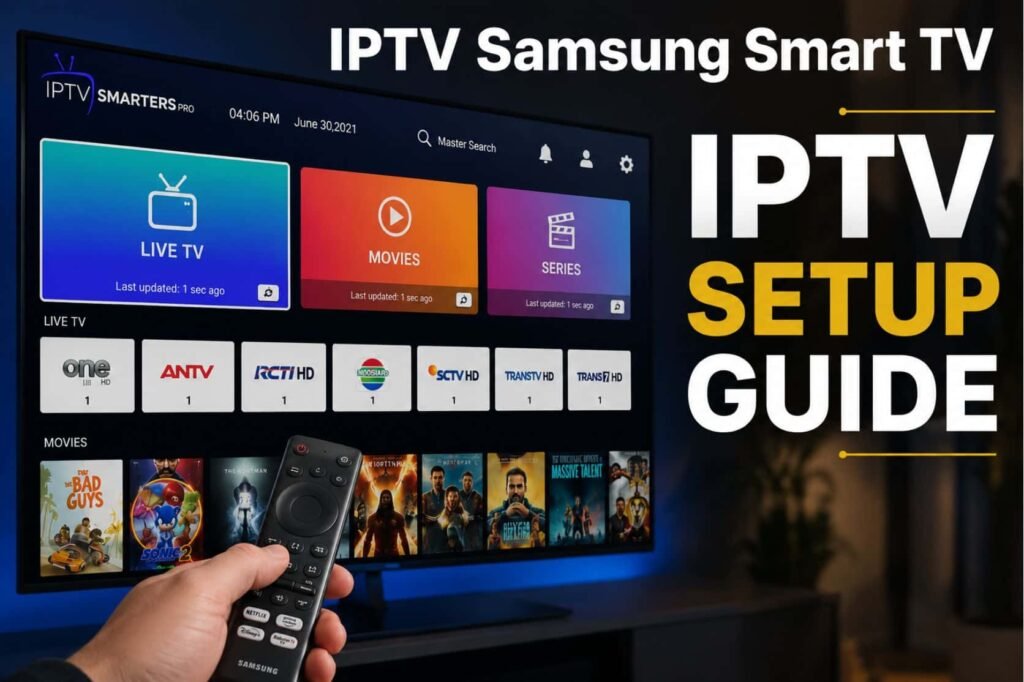
IPTV Samsung Smart TV transforms your living room by allowing you to stream Live TV, Video on Demand (VOD), and Catch-up TV directly through your television’s interface. By leveraging the Samsung Smart Hub and the robust Samsung Tizen OS, you can access global entertainment without needing external hardware like an Android box. Understanding how to watch IPTV Samsung Smart TV is the first step toward a premium viewing experience. IPTV delivers content via HLS streaming protocols over your internet connection, often supporting high-quality formats like 4K UHD and HEVC (H.265). Whether you own a Samsung QLED TV, OLED TV, or a Crystal UHD TV, the setup is straightforward once you choose the right player. Important Disclaimer: Please ensure you only stream licensed, legal content. Using unauthorized IPTV services may violate copyright laws and terms of service. Always prioritize verified providers to ensure a safe and high-quality streaming journey. If you are looking for a reliable service provider to enhance your streaming experience, visit Vibe Viso to explore professional-grade solutions tailored for your television. Is It Possible to Watch IPTV Directly on Your Samsung Smart TV Yes, you can watch IPTV Samsung Smart TV directly, but it depends heavily on your TV’s operating system version and the availability of specific applications within the Samsung Smart Hub. While some models allow a native IPTV setup on Samsung Tizen TV, others may have restricted access to third-party streaming software. Configuring your player correctly is the key to a lag-free experience. If you are struggling with the steps, you can refer to our comprehensive IPTV configuration guide to set up your device perfectly. Additionally, make sure you are using reliable M3U playlists for IPTV to get the best channel selection. The Tizen OS Limitations The primary reason you might struggle to install IPTV app on Samsung Smart TV is the closed nature of the Samsung Tizen OS. Unlike Android TV, which is an open platform, Tizen requires all apps to pass strict security and compatibility reviews to appear in the Samsung Smart Hub. As a result, many popular IPTV players for Samsung Tizen OS are either missing from the official store or have limited functionality. For instance, if you are looking for a specific IPTV player with M3U support, it might be geo-restricted or unavailable in your region, forcing users to seek alternatives to watch IPTV Samsung Smart TV without native support. Understanding Samsung Smart TV Models and Compatibility To know if your device supports an IPTV setup guide, you must first identify your hardware. Generally, Samsung TVs manufactured from 2017 onwards, running Tizen OS 3.0 or higher, offer the best compatibility for IPTV streaming on Samsung Smart TV. How to check your OS: Navigate to Settings > Support > About This TV. Here, you can check your model code and software version. Device Context: Whether you own a Samsung QLED TV, Samsung OLED TV, or a Samsung Crystal UHD TV, the core compatibility remains tied to the Tizen version. The Old TV Factor: If you are trying to configure IPTV on an old Samsung Smart TV (pre-2016 models), you will likely face significant roadblocks. According to documentation on Smart Hub support, older models lack the hardware acceleration required for modern HEVC (H.265) and H.264 codecs, often leading to playback errors or the inability to run modern IPTV apps compatible with Samsung Smart TV. In my 5 years of experience as an IPTV consultant, I have seen many users struggle because they assume every Smart TV can run any application. If your TV lacks the necessary Tizen version, trying to force an installation often leads to a Samsung TV IPTV black screen or an IPTV app that won’t open on Samsung TV. In such cases, attempting a Samsung Smart TV IPTV installation tutorial without the right software version is futile, and moving toward external hardware is the only professional recommendation to ensure a stable 4K UHD or HDR10 stream. What Do You Need Before Setting Up IPTV Samsung Smart TV To ensure a seamless IPTV Samsung Smart TV experience, you must prepare your network and account credentials before beginning the Samsung Smart TV IPTV setup guide. Gathering these essentials prevents common issues like a black screen or playback failed errors, ensuring you can enjoy high-quality Live TV and VOD content without interruption. Essential Internet Speed for High-Quality Streaming For a stable 4K UHD IPTV Samsung Smart TV stream, a consistent connection of at least 25 Mbps is required. This speed is necessary because 4K streaming with HDR10 support consumes significantly more bandwidth than standard definition video to process the high-density pixel data of HEVC (H.265) encoded streams. If your bandwidth fluctuates below this threshold, you will likely experience IPTV buffering issues or persistent lag on Samsung Smart TV. To maintain this quality, I strongly recommend using a wired Ethernet connection instead of Dual-Band Wi-Fi, as Ethernet eliminates signal interference, which is a major cause of IPTV buffering on Samsung TV. Always run a speed test via your TV’s browser or a dedicated utility app to confirm your connection stability before finalizing your Samsung TV IPTV configuration guide. Choosing Between M3U Playlists and Xtream Codes API When you prepare to configure IPTV Samsung Smart TV, you will need a valid subscription provided via one of two primary methods: an M3U Playlist or Xtream Codes API. Understanding the difference is vital for a successful IPTV setup on Samsung Tizen TV. M3U Playlist: This is a simple text-based file that contains the URLs for your Live TV channels. When you add M3U playlist on Samsung TV, you are essentially providing the player with a map of where to fetch video data. It is easy to use but lacks advanced features. Xtream Codes API: This is the professional standard for IPTV player on Samsung Tizen OS. Instead of just a file, the Xtream Codes API provides a username, password, and server URL. This method is superior because it automatically fetches your XML EPG (Electronic Program Guide), keeps your