
Ultimate IPTV Samsung Smart TV Setup Guide 2026
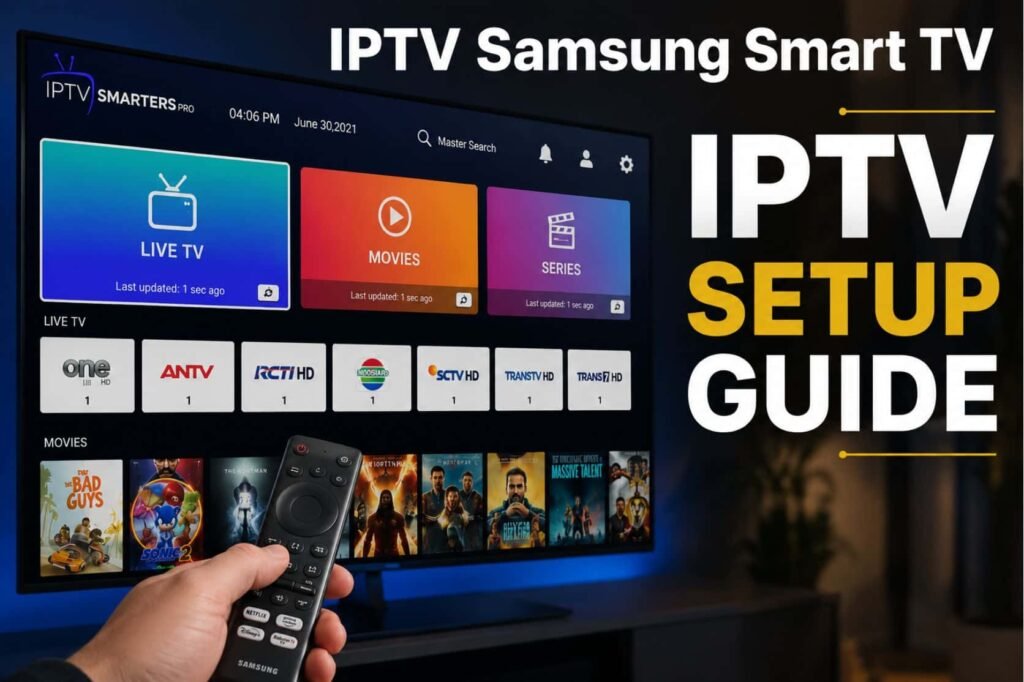
IPTV Samsung Smart TV transforms your living room by allowing you to stream Live TV, Video on Demand (VOD), and Catch-up TV directly through your television’s interface. By leveraging the Samsung Smart Hub and the robust Samsung Tizen OS, you can access global entertainment without needing external hardware like an Android box. Understanding how to watch IPTV Samsung Smart TV is the first step toward a premium viewing experience. IPTV delivers content via HLS streaming protocols over your internet connection, often supporting high-quality formats like 4K UHD and HEVC (H.265). Whether you own a Samsung QLED TV, OLED TV, or a Crystal UHD TV, the setup is straightforward once you choose the right player. Important Disclaimer: Please ensure you only stream licensed, legal content. Using unauthorized IPTV services may violate copyright laws and terms of service. Always prioritize verified providers to ensure a safe and high-quality streaming journey. If you are looking for a reliable service provider to enhance your streaming experience, visit Vibe Viso to explore professional-grade solutions tailored for your television. Is It Possible to Watch IPTV Directly on Your Samsung Smart TV Yes, you can watch IPTV Samsung Smart TV directly, but it depends heavily on your TV’s operating system version and the availability of specific applications within the Samsung Smart Hub. While some models allow a native IPTV setup on Samsung Tizen TV, others may have restricted access to third-party streaming software. Configuring your player correctly is the key to a lag-free experience. If you are struggling with the steps, you can refer to our comprehensive IPTV configuration guide to set up your device perfectly. Additionally, make sure you are using reliable M3U playlists for IPTV to get the best channel selection. The Tizen OS Limitations The primary reason you might struggle to install IPTV app on Samsung Smart TV is the closed nature of the Samsung Tizen OS. Unlike Android TV, which is an open platform, Tizen requires all apps to pass strict security and compatibility reviews to appear in the Samsung Smart Hub. As a result, many popular IPTV players for Samsung Tizen OS are either missing from the official store or have limited functionality. For instance, if you are looking for a specific IPTV player with M3U support, it might be geo-restricted or unavailable in your region, forcing users to seek alternatives to watch IPTV Samsung Smart TV without native support. Understanding Samsung Smart TV Models and Compatibility To know if your device supports an IPTV setup guide, you must first identify your hardware. Generally, Samsung TVs manufactured from 2017 onwards, running Tizen OS 3.0 or higher, offer the best compatibility for IPTV streaming on Samsung Smart TV. How to check your OS: Navigate to Settings > Support > About This TV. Here, you can check your model code and software version. Device Context: Whether you own a Samsung QLED TV, Samsung OLED TV, or a Samsung Crystal UHD TV, the core compatibility remains tied to the Tizen version. The Old TV Factor: If you are trying to configure IPTV on an old Samsung Smart TV (pre-2016 models), you will likely face significant roadblocks. According to documentation on Smart Hub support, older models lack the hardware acceleration required for modern HEVC (H.265) and H.264 codecs, often leading to playback errors or the inability to run modern IPTV apps compatible with Samsung Smart TV. In my 5 years of experience as an IPTV consultant, I have seen many users struggle because they assume every Smart TV can run any application. If your TV lacks the necessary Tizen version, trying to force an installation often leads to a Samsung TV IPTV black screen or an IPTV app that won’t open on Samsung TV. In such cases, attempting a Samsung Smart TV IPTV installation tutorial without the right software version is futile, and moving toward external hardware is the only professional recommendation to ensure a stable 4K UHD or HDR10 stream. What Do You Need Before Setting Up IPTV Samsung Smart TV To ensure a seamless IPTV Samsung Smart TV experience, you must prepare your network and account credentials before beginning the Samsung Smart TV IPTV setup guide. Gathering these essentials prevents common issues like a black screen or playback failed errors, ensuring you can enjoy high-quality Live TV and VOD content without interruption. Essential Internet Speed for High-Quality Streaming For a stable 4K UHD IPTV Samsung Smart TV stream, a consistent connection of at least 25 Mbps is required. This speed is necessary because 4K streaming with HDR10 support consumes significantly more bandwidth than standard definition video to process the high-density pixel data of HEVC (H.265) encoded streams. If your bandwidth fluctuates below this threshold, you will likely experience IPTV buffering issues or persistent lag on Samsung Smart TV. To maintain this quality, I strongly recommend using a wired Ethernet connection instead of Dual-Band Wi-Fi, as Ethernet eliminates signal interference, which is a major cause of IPTV buffering on Samsung TV. Always run a speed test via your TV’s browser or a dedicated utility app to confirm your connection stability before finalizing your Samsung TV IPTV configuration guide. Choosing Between M3U Playlists and Xtream Codes API When you prepare to configure IPTV Samsung Smart TV, you will need a valid subscription provided via one of two primary methods: an M3U Playlist or Xtream Codes API. Understanding the difference is vital for a successful IPTV setup on Samsung Tizen TV. M3U Playlist: This is a simple text-based file that contains the URLs for your Live TV channels. When you add M3U playlist on Samsung TV, you are essentially providing the player with a map of where to fetch video data. It is easy to use but lacks advanced features. Xtream Codes API: This is the professional standard for IPTV player on Samsung Tizen OS. Instead of just a file, the Xtream Codes API provides a username, password, and server URL. This method is superior because it automatically fetches your XML EPG (Electronic Program Guide), keeps your