IPTV on Firestick Ultimate Guide (2026 Edition)
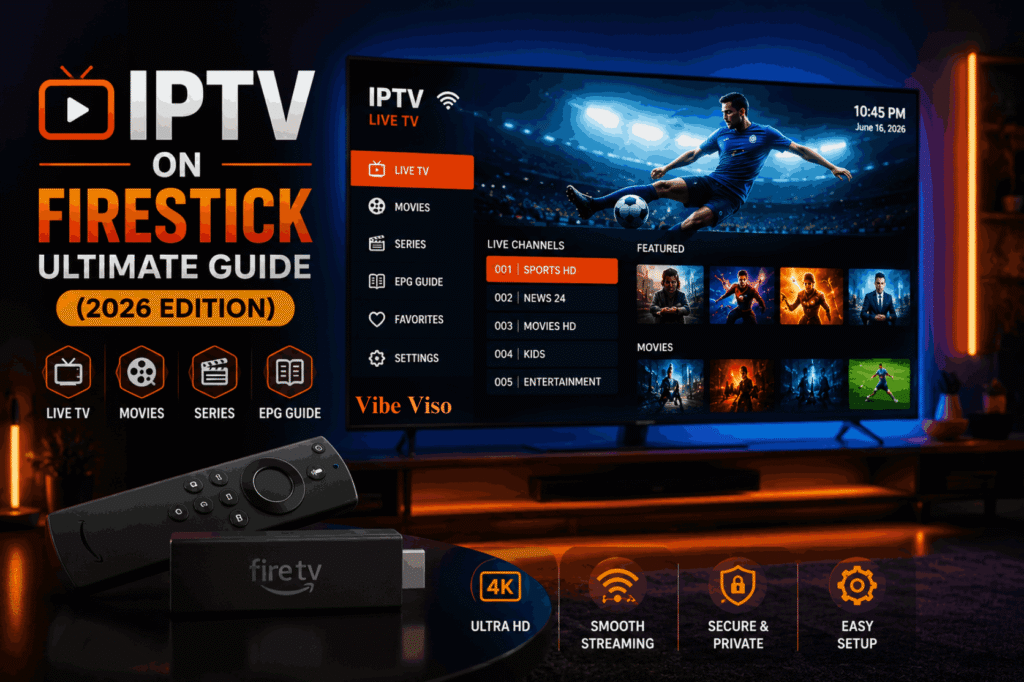
Are you tired of paying massive monthly cable bills? It’s time to cut the cord. In 2026, the way we watch Live TV and Video on Demand (VOD) has shifted significantly. With the introduction of Amazon’s new Vega OS, many users are finding it harder than ever to get IPTV on Firestick running smoothly. Whether you are searching for the best IPTV Firestick setup or need a reliable IPTV Fire TV Stick installation guide, you have come to the right place. This guide is your ultimate roadmap to installing a top-tier IPTV App on your Amazon Fire TV Stick while ensuring a professional, zero-buffering experience—no matter which streaming device model you own. CRITICAL WARNING: Fire OS vs Vega OS in 2026 If your new device runs Vega OS instead of the traditional Fire OS, your ability to sideload third-party IPTV apps will be strictly restricted. To ensure your IPTV on Firestick setup works, you must verify your Firestick OS version immediately, as Fire OS IPTV compatibility is currently superior to the newer, locked-down Vega environment. As an industry expert with 5 years of experience, I’ve seen this transition disrupt the Firestick IPTV landscape significantly. While Fire OS allows open-source flexibility for your favorite IPTV player, Vega OS is a Linux-based shift designed by Amazon to enhance performance but limit unauthorized APK installation. Understanding this distinction is vital for a seamless IPTV streaming experience in 2026. Why some new Firesticks block IPTV apps (Vega OS explained) New devices using Vega OS block IPTV apps because they lack the Android-based framework required for standard sideloading. Unlike the older Fire OS versions that allowed APK installation from “Unknown Sources” via the Downloader App, Vega OS enforces strict security protocols that prevent the execution of third-party IPTV App files not found in the official Amazon Appstore. The move toward Vega OS is essentially a move toward a “walled garden” ecosystem. In my experience, these app restrictions are meant to improve stability, but they effectively kill the versatility that made the Firestick a favorite for IPTV enthusiasts. If your device uses Vega, you won’t be able to bypass these security measures using standard sideloading techniques. How to identify your Firestick model and OS version To identify your device, navigate to Fire TV Settings > Device Information > About. Here, you can check your Firestick model and the current Firestick OS version. Devices like the Fire TV Stick 4K Max or Fire TV Cube provide different software paths, so always confirm your specific Fire TV settings to determine if you are running a compatible OS for IPTV usage. Knowing your specific hardware—whether it’s the Fire TV Stick Lite, Fire TV Stick HD, Fire TV Stick 4K, or the high-performance Fire TV Stick 4K Max—is critical. I always advise users to check the System Update menu after identifying the model, as software patches can sometimes change your underlying OS environment, affecting your IPTV compatibility. The best Firestick models to buy for IPTV in 2026 The Fire TV Stick 4K Max is currently the best Firestick for IPTV in 2026 due to its superior processing power, Wi-Fi 6 support, and ample storage for high-quality streaming performance. While the Fire TV Stick 4K or standard Fire TV Stick HD are viable, the 4K Max ensures the best playback for Dolby Vision and HDR10 content, minimizing the hardware bottlenecks often seen in the Fire TV Stick Lite. In my 5 years as an IPTV provider, I’ve learned that hardware matters just as much as the service itself. A device with a faster processor handles heavy IPTV app interfaces and large EPG files with ease. For the best long-term results, invest in a model that won’t lag when decoding high-bitrate streams, ensuring your Firestick IPTV setup remains future-proof. The “Pre-Flight” Checklist Before Using IPTV on Firestick Before beginning your IPTV setup, you must verify three critical pillars: a minimum stable internet speed of 25 Mbps, a reliable IPTV subscription supporting Xtream Codes API, and a secure environment to avoid IPTV malware. Skipping this IPTV setup checklist often leads to common issues like buffering and account suspension. As an industry expert, I’ve seen many users jump straight into installation, only to face endless technical glitches. Proper IPTV preparation isn’t just about software; it’s about ensuring your home network and provider choices are robust enough to handle high-definition content without compromising your data privacy. Internet speed reality check To maintain a high-quality stream, you need a minimum of 25 Mbps download speed. You can verify your connection using Fast.com to detect potential ISP throttling. If your speed test shows consistent fluctuations or low bandwidth, your IPTV streaming experience will suffer from persistent buffering, regardless of your chosen IPTV player. Many users mistake their “advertised” speed for their “actual” streaming speed. I always advise running a speed test during peak usage hours. If your Internet Service Provider (ISP) is actively practicing bandwidth shaping, you’ll notice a significant drop in latency and quality. Using a high-quality VPN can often bypass this throttling, ensuring you get the performance you pay for. Choosing the right provider: Xtream Codes API vs. M3U playlists Xtream Codes API is vastly superior to standard M3U playlists for Firestick users because it offers faster authentication, automated EPG (Electronic Program Guide) integration, and more reliable VOD (Video on Demand) organization. While an M3U playlist is essentially a static file, the API allows for dynamic updates without re-entering long, complex playlist URLs. If you are struggling to source a high-quality list, check our guide on finding a stable M3U playlist to ensure your streaming library is both active and buffer-free. In my 5 years of providing IPTV solutions, I always recommend Xtream Codes API as the primary IPTV login method. M3U links are prone to breaking and are often clunky to manage, especially when dealing with large libraries. The API implementation in modern apps like TiviMate allows for a snappier, “cable-like” experience that M3U files simply cannot replicate. The hidden dangers of “Free”